> ## Documentation Index
> Fetch the complete documentation index at: https://codeplugtech.mintlify.site/llms.txt
> Use this file to discover all available pages before exploring further.
# 📧 Automatically Forward Gmail Messages
## Turn On Automatic Forwarding
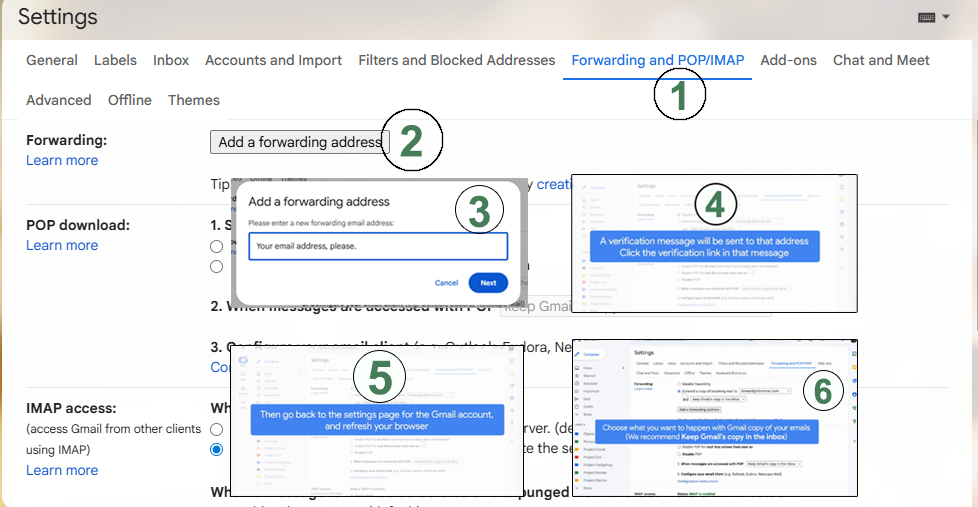
Follow these steps to forward all incoming Gmail messages to another email account:
1. **Open Gmail** using the account you want to forward messages from.
2. In the top right corner, click **Settings** (gear icon) → **See all settings**.
3. Go to the **Forwarding and POP/IMAP** tab.
4. In the **Forwarding** section, click **Add a forwarding address**.
5. Enter the email address where you want your messages forwarded.
6. Click **Next → Proceed → OK**.
7. A verification email will be sent to that address. Open it and **click the verification link**.
8. Return to the Gmail settings page and **refresh your browser**.
9. Go back to the **Forwarding and POP/IMAP** tab.
10. In the **Forwarding** section, select **Forward a copy of incoming mail to** and choose the forwarding email address.
11. Decide what happens to the Gmail copy of your emails.
* Recommended: **Keep Gmail's copy in the Inbox**.
12. Scroll down and click **Save Changes**.
***
## Forward Only Certain Messages
You can forward only specific types of messages using Gmail filters:
1. Create a **filter** for the messages you want to forward.
2. During filter setup, choose the email address where these messages should be forwarded.
3. If the forwarding email doesn’t appear, first enable automatic forwarding following the steps above.
***
## Official Guide
For more details, see the [Official Gmail Help Page on Forwarding Emails](https://support.google.com/mail/answer/10957).
## Reference
> Follow the screenshots and video for a step-by-step guide.