> ## Documentation Index
> Fetch the complete documentation index at: https://codeplugtech.mintlify.site/llms.txt
> Use this file to discover all available pages before exploring further.
# File Upload
This page explains how to upload files.
* Supported formats: **PDF, JPG, PNG, BMP**
* Drag and drop your files to upload.
* Maximum file size depends on your plan (up to **20 MB**)
* You can upload multiple files depending on your plan.
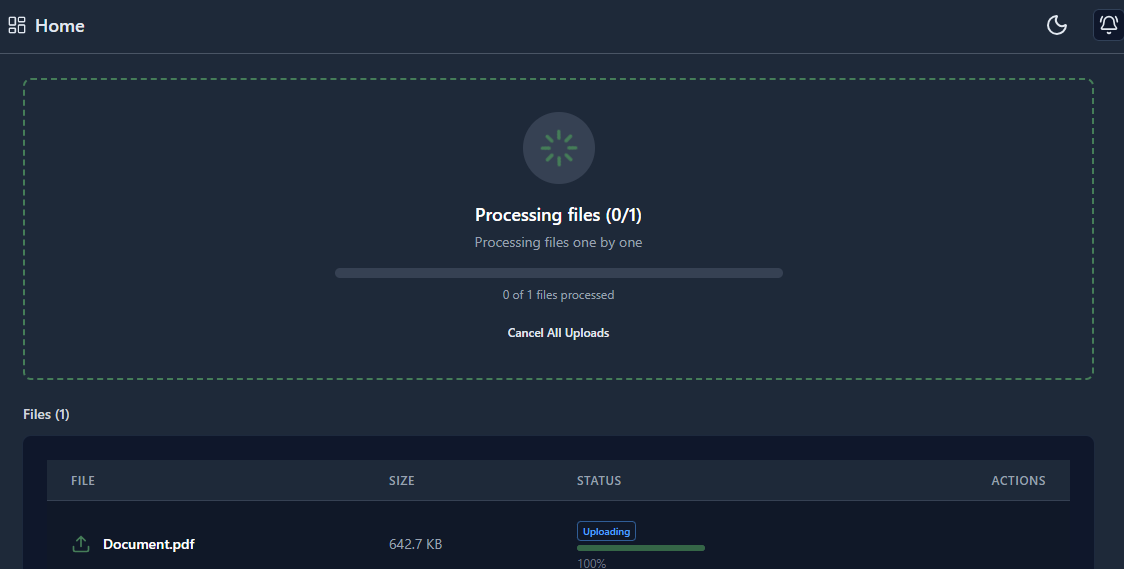
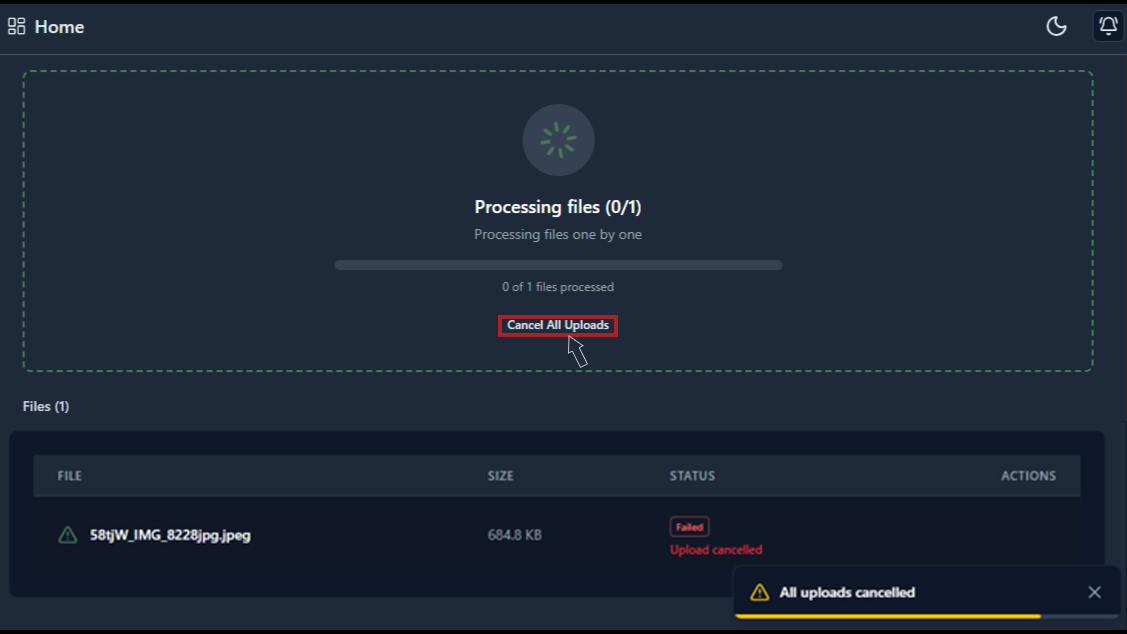
* If you upload the wrong file, use the **Cancel Upload** button before the **upload reaches 100%**.
* If a file upload fails, your credits will be **restored**.
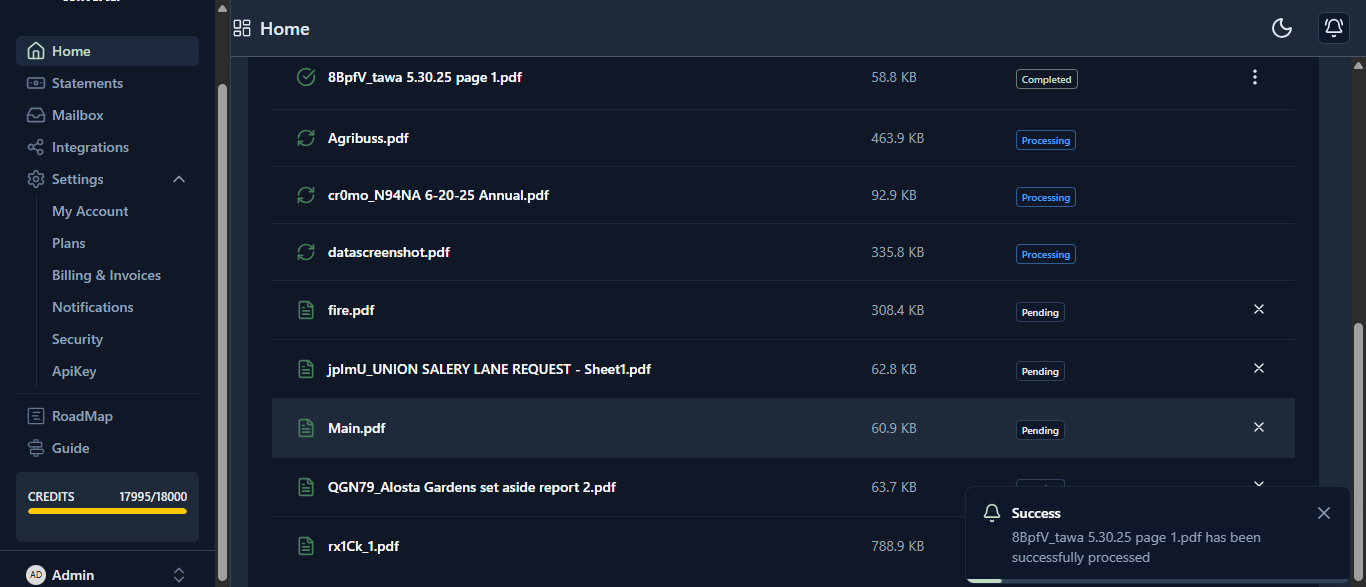
* Once the file is **completed**, you will **receive an email notifying you that your file is ready to download**.
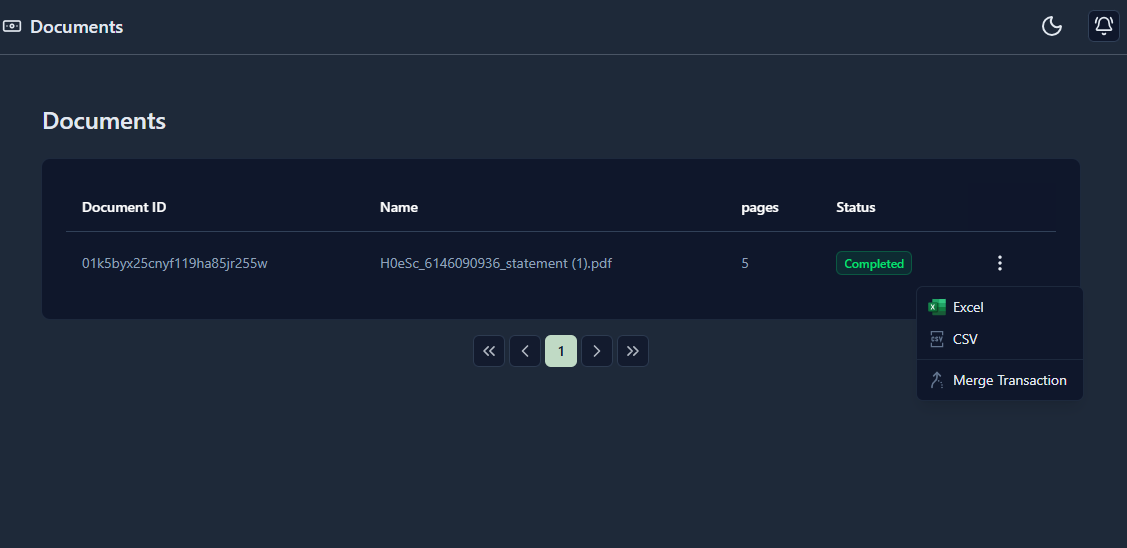
* After your file is complete, you can download it in your desired formats such as **Excel or CSV**.
* **Starter**: Files are processed in a **queue** (one by one).
* **Pro**: Files are processed in **parallel**. (Files are processed simultaneously)
* **Bussiness**: Files are processed in **parallel**. (Files are processed simultaneously)
### Plan Details
| Plan | File Size Limit | Processing Mode | Maximum Document Attachments | File Types | Data Retention |
| --------- | --------------: | --------------- | ----------------------------------- | ------------------ | -------------- |
| Starter | Max 5 MB | Queue | Multiple document processing Max 5 | PDF, JPG, PNG, BMP | 30 days |
| Pro | Max 10 MB | Parallel | Multiple document processing Max 10 | PDF, JPG, PNG, BMP | 90 days |
| Bussiness | Max 20 MB | Parallel | Multiple document processing Max 20 | PDF, JPG, PNG, BMP | 365 days |
## Reference
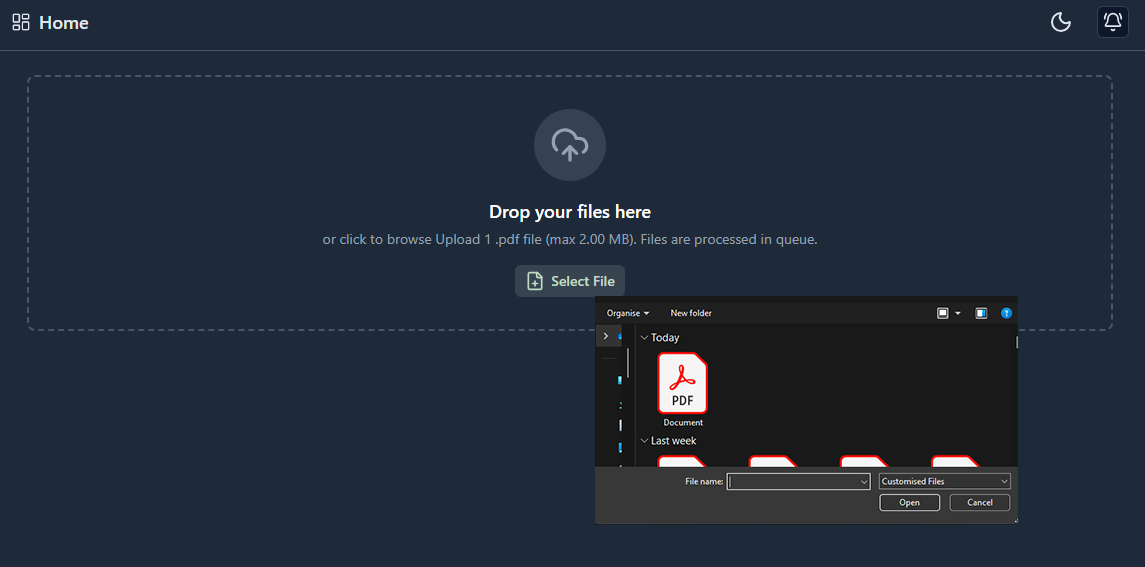
> Follow the screenshots below for a visual guide.
1. Click the **Select Files** button and choose your bank statement **file from your device**.
 2. Wait while the file is being **processed**.
 3. Multiple documents can be **uploaded based on your plan**.
 4. To cancel a file upload, use **Cancel All Uploads** before the upload reaches 100%.
 5. Go to **Statements** and download your bank statement in your preferred **output formats**.