> ## Documentation Index
> Fetch the complete documentation index at: https://codeplugtech.mintlify.site/llms.txt
> Use this file to discover all available pages before exploring further.
# Google Sheets
## 📊 Exporting Data to Google Sheets
The information you receive from order confirmations, booking emails, or website forms often needs to be organized into financial statements or reports.\
Instead of doing this manually, **BankStmtConverter** lets you **automatically export your parsed data to Google Sheets**, making it faster and easier to keep your records up to date.
***
# Using a Special Google Sheets Formula
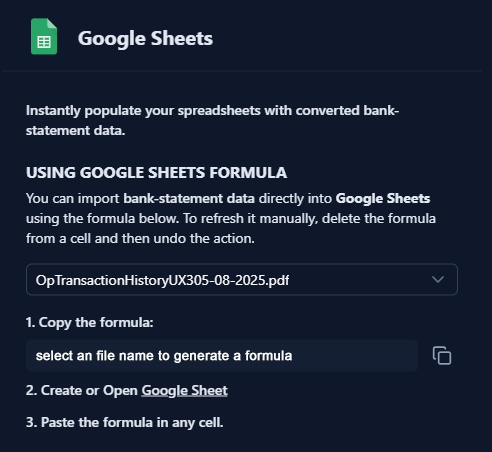
After creating your **Mailbox** you can bring parsed data into Google Sheets by copying the **special formula** (available on the **Integrations** page) and pasting it into any cell in your Sheet.
* Google Sheets will refresh the data automatically approximately **once every hour**.
* To update the data immediately, delete the formula from the cell and then use **Undo** — this will force a refresh.
* You can also **customize the order of your data columns** at any time from the **Fields** page.
Once the inbox and auto-forwarding rules are set, you can pull your parsed data into Google Sheets quickly using this formula.
***
## 🔎 Steps to Use the Google Sheets Formula
1. **Copy the Formula** (Example)
```text theme={null}
select a file name to generate a formula
```
2. **Create or Open a Google Sheet**
* Go to [Google Sheets](https://sheets.google.com)
* Open an existing spreadsheet or create a new one.
3. **Paste the Formula into Any Cell**
* Select a cell and paste the copied formula.
* The data will automatically populate your spreadsheet.
## Reference
> Follow the screenshot above for a visual guide.
1. **Open Google Sheets on Integration**
Open [Google Sheets](https://sheets.google.com) in your browser and either create a new spreadsheet or open an existing one.
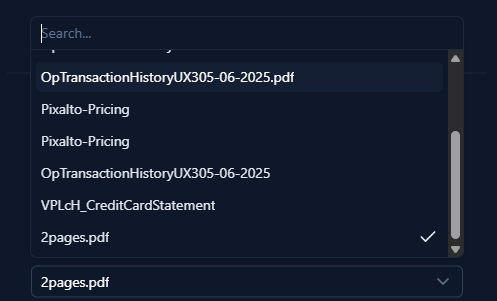
2. **Search and Select Your Document**
Find the document you want to import data from and select it.
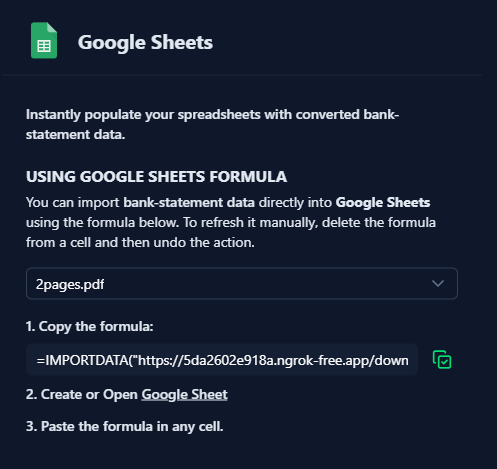
3. **Generate the Document Formula** & **Copy to Clipboard**
A unique formula for the selected document will be automatically generated. Copy the generated formula to your clipboard.
.
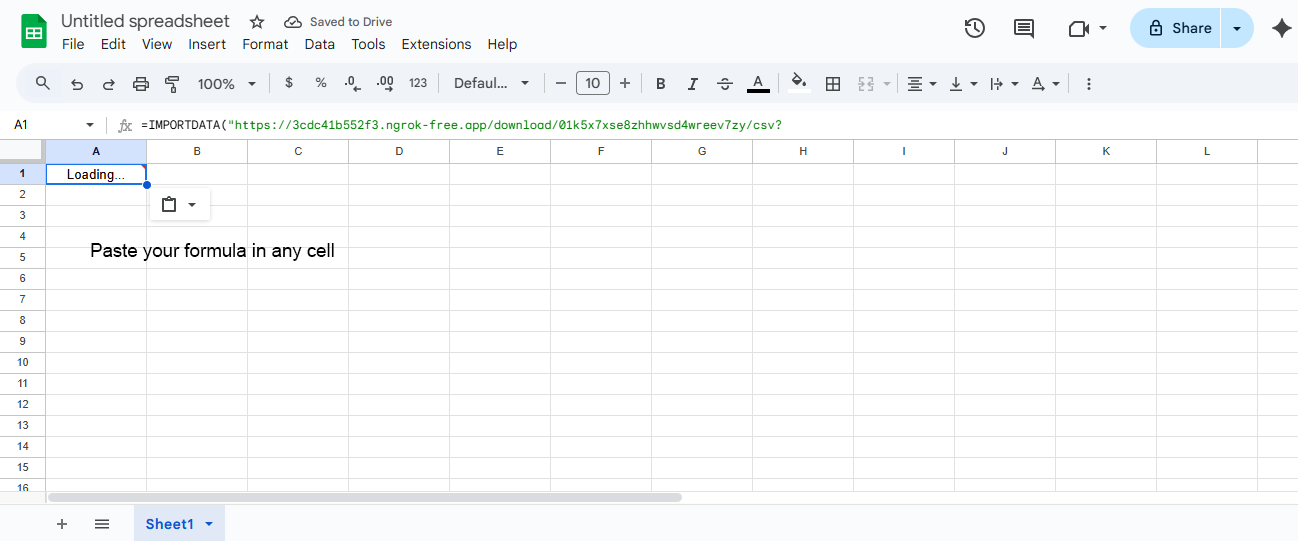
4. **Paste the Formula into Google Sheets**
* Go to your spreadsheet, select a cell, and paste the formula in any cell.
.
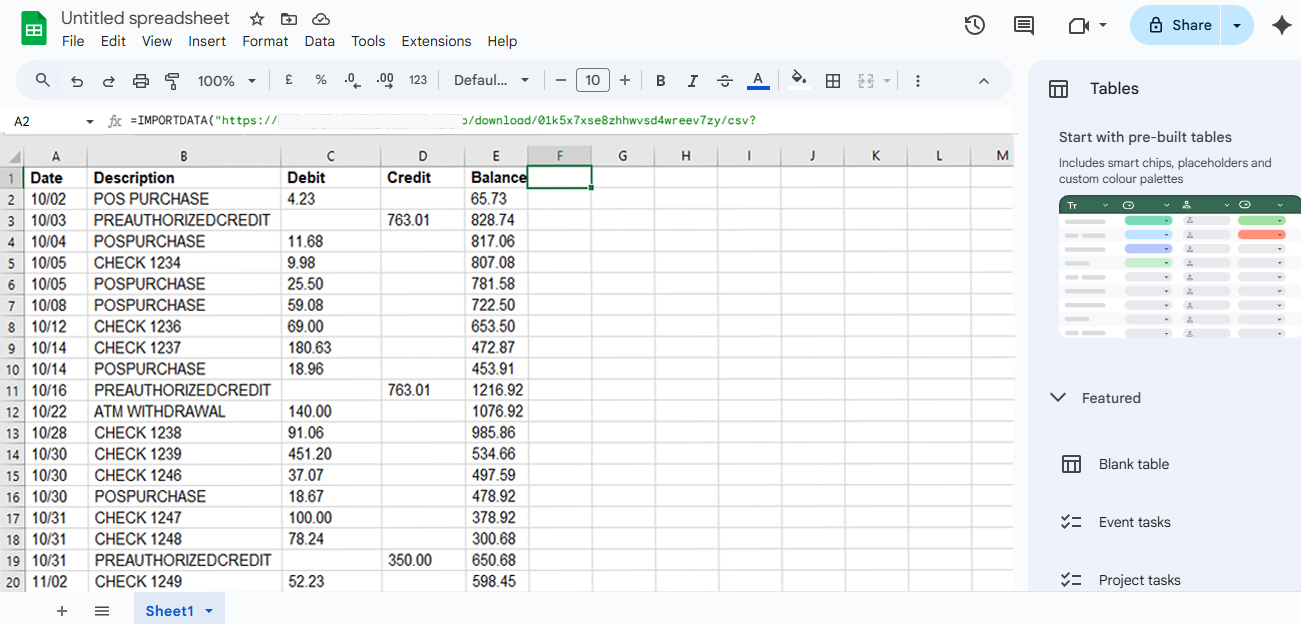
* The data from your document will then populate the sheet automatically.
> Follow the video for a step-by-step guide.
 * Google Sheets will refresh the data automatically approximately **once every hour**.
* To update the data immediately, delete the formula from the cell and then use **Undo** — this will force a refresh.
* You can also **customize the order of your data columns** at any time from the **Fields** page.
Once the inbox and auto-forwarding rules are set, you can pull your parsed data into Google Sheets quickly using this formula.
***
## 🔎 Steps to Use the Google Sheets Formula
1. **Copy the Formula** (Example)
```text theme={null}
select a file name to generate a formula
```
2. **Create or Open a Google Sheet**
* Go to [Google Sheets](https://sheets.google.com)
* Open an existing spreadsheet or create a new one.
3. **Paste the Formula into Any Cell**
* Select a cell and paste the copied formula.
* The data will automatically populate your spreadsheet.
## Reference
> Follow the screenshot above for a visual guide.
1. **Open Google Sheets on Integration**
Open [Google Sheets](https://sheets.google.com) in your browser and either create a new spreadsheet or open an existing one.
* Google Sheets will refresh the data automatically approximately **once every hour**.
* To update the data immediately, delete the formula from the cell and then use **Undo** — this will force a refresh.
* You can also **customize the order of your data columns** at any time from the **Fields** page.
Once the inbox and auto-forwarding rules are set, you can pull your parsed data into Google Sheets quickly using this formula.
***
## 🔎 Steps to Use the Google Sheets Formula
1. **Copy the Formula** (Example)
```text theme={null}
select a file name to generate a formula
```
2. **Create or Open a Google Sheet**
* Go to [Google Sheets](https://sheets.google.com)
* Open an existing spreadsheet or create a new one.
3. **Paste the Formula into Any Cell**
* Select a cell and paste the copied formula.
* The data will automatically populate your spreadsheet.
## Reference
> Follow the screenshot above for a visual guide.
1. **Open Google Sheets on Integration**
Open [Google Sheets](https://sheets.google.com) in your browser and either create a new spreadsheet or open an existing one.
 3. **Generate the Document Formula** & **Copy to Clipboard**
A unique formula for the selected document will be automatically generated. Copy the generated formula to your clipboard.
3. **Generate the Document Formula** & **Copy to Clipboard**
A unique formula for the selected document will be automatically generated. Copy the generated formula to your clipboard.
 .
4. **Paste the Formula into Google Sheets**
* Go to your spreadsheet, select a cell, and paste the formula in any cell.
.
4. **Paste the Formula into Google Sheets**
* Go to your spreadsheet, select a cell, and paste the formula in any cell.
 .
* The data from your document will then populate the sheet automatically.
.
* The data from your document will then populate the sheet automatically.
 > Follow the video for a step-by-step guide.