> ## Documentation Index
> Fetch the complete documentation index at: https://codeplugtech.mintlify.site/llms.txt
> Use this file to discover all available pages before exploring further.
# Mailbox
## Automate Data Extraction from Your Emails
Welcome to **Bank Statement Converter** — a simple way to extract data from emails automatically and turn attached bank statements into structured files you can download and use.
This guide explains how the Mailbox (Inbox) works, how to send or forward emails from Gmail, what happens after an email is received, plan limits, data retention, file type rules, priority email support, and troubleshooting tips.
***
## How the mailbox works
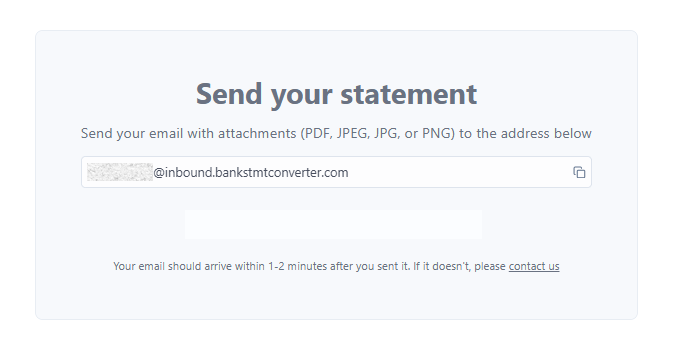
* **Inbox (Mailbox):** Your account gets a unique email address (an *Inbox*) that looks like a one-time address configured for your account. You can find the exact address in your Dashboard under **Mailbox**. Copy that address when you need to send or forward emails.
***
## Step-by-step procedure
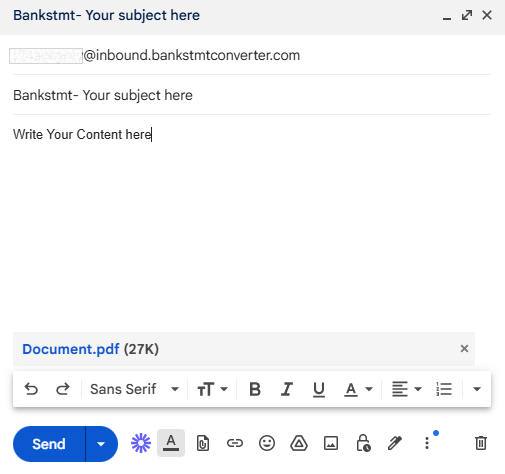
1. Open Gmail and click **Compose**.
2. In the **To** field, paste your mailbox address (copy it from Dashboard → Mailboxes).
3. Add a **Subject**.
4. In the email body, include any notes or instructions for parsing (optional).
5. Attach the PDF bank statement(s). **Check your plan limits** for maximum attachments (see table below).
6. Ensure the **total size of all attachments does not exceed 20 MB**.
7. Click **Send**.
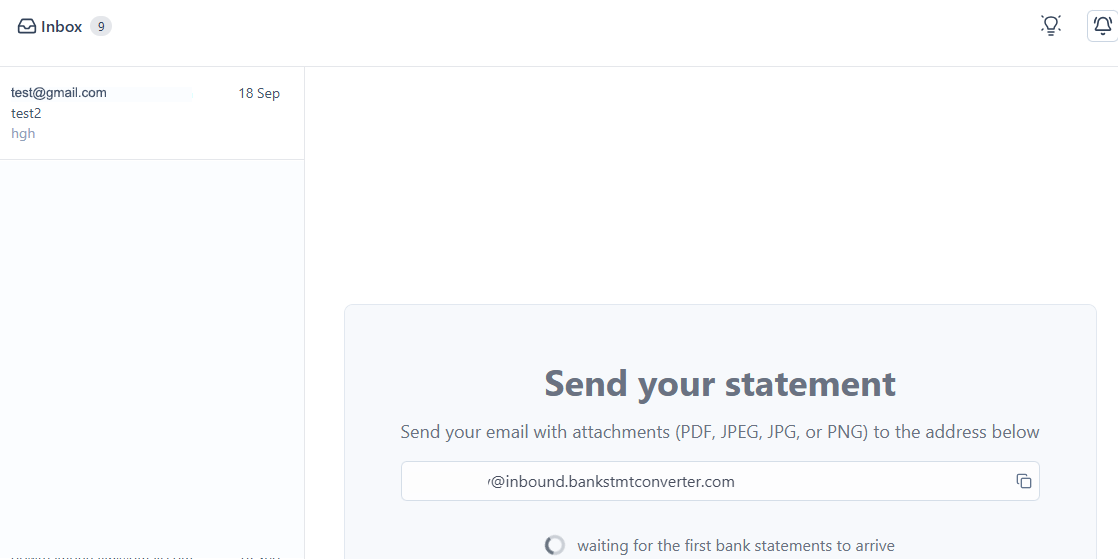
8. Open your Bank Statement Converter Dashboard → **Mailbox**. You should see the incoming message.
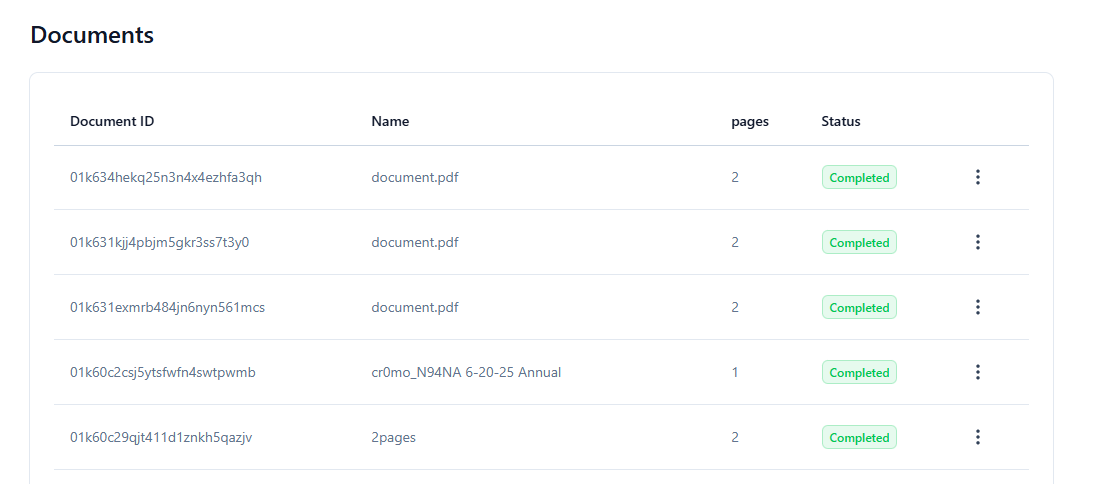
9. Once the email is received, it is **automatically passed to the Statements** section for processing.
10. Wait until the item status shows **Completed**.
11. When completed, click the item and **download** your converted file(s) in your **desired format**.
***
## What happens after the mail is received
* The message appears in Dashboard → **Mailbox**.
* Statuses explained:
* **Queued** — waiting its turn (Starter Plan → Processing Mode: Queue).
* **Processing** — parsing and conversion are running.
* **Completed** — the output is ready to download.
* **Failed** — file could not be processed (credits restored).
- Once the email is received in the **Mailbox**, it is automatically sent to **Statements** for processing.
- If the processing is **completed**, you can download your desired output format.
### Available output formats:
* **Excel**
* **CSV**
* **Merged Transactions**
***
## Plans, Limits, and Processing Modes
Choose a plan that fits your workload and upgrade anytime if you need higher limits.
> Please read the following important information carefully.
* ⚠️ If the total mail size is more than **20 MB**, the upload will **fail**.
* ✅ If a mail upload fails, **your credits will be automatically restored**.
* 🔄 You can then **re-upload the file** within the size limits.
* 💡 To avoid errors, always check the total size of your attachments before sending.
* 📌 Remember: the system processes files based on your plan — **Queue** for Starter and **Parallel** for **Pro** and Bussiness.
| Plan | Mail Parse — max attachments | Processing Mode | Data Retention |
| --------- | ---------------------------: | --------------- | -------------- |
| Pro | Max 3 attachments per email | Parallel | 90 days |
| Bussiness | Max 6 attachments per email | Parallel | 365 days |
***
## File Type Rules
* **Starter & Pro Plans:** You can attach **PDF and image files** only (PDF, JPG, PNG, BMP).
* **Bussiness Plan:** You can attach **PDF and image files** (PDF, JPG, PNG, BMP).
***
## Priority Email Support
* **Starter & Pro** and **Bussiness Plan** get **priority email support**, which means faster response times for any issues or questions.
* If your mail parse attachment is larger than **20 MB** or contains **invalid file types**, you will receive an **immediate notification email** from **[support@bankstmtconverter.com](mailto:support@bankstmtconverter.com)**.
* When a file is **successfully processed and completed**, you will also receive a **confirmation email** with the **status update**.
***
## Downloading the converted result
1. Go to Dashboard → **Statement** to view your PDFs that are being processed.
2. Once the item is marked **Completed**, select your desired file format to **Download**.
***
## Reference
> Follow the screenshots below for a visual guide.
1. Your account gets a **unique email address**.
2. In the **To** field, paste your mailbox address **(copy it from Mailboxes)**.
3. Mail received from **Mailbox**
4. Once the email is received in the **Mailbox**, it is automatically passed to the **Statements**.
> Follow the Tutorial video for a step-by-step guide.
 2. In the **To** field, paste your mailbox address **(copy it from Mailboxes)**.
 3. Mail received from **Mailbox**
 4. Once the email is received in the **Mailbox**, it is automatically passed to the **Statements**.
 > Follow the Tutorial video for a step-by-step guide.