> ## Documentation Index
> Fetch the complete documentation index at: https://codeplugtech.mintlify.site/llms.txt
> Use this file to discover all available pages before exploring further.
# Statement
# 📄 Statement Manage and Download Your Documents
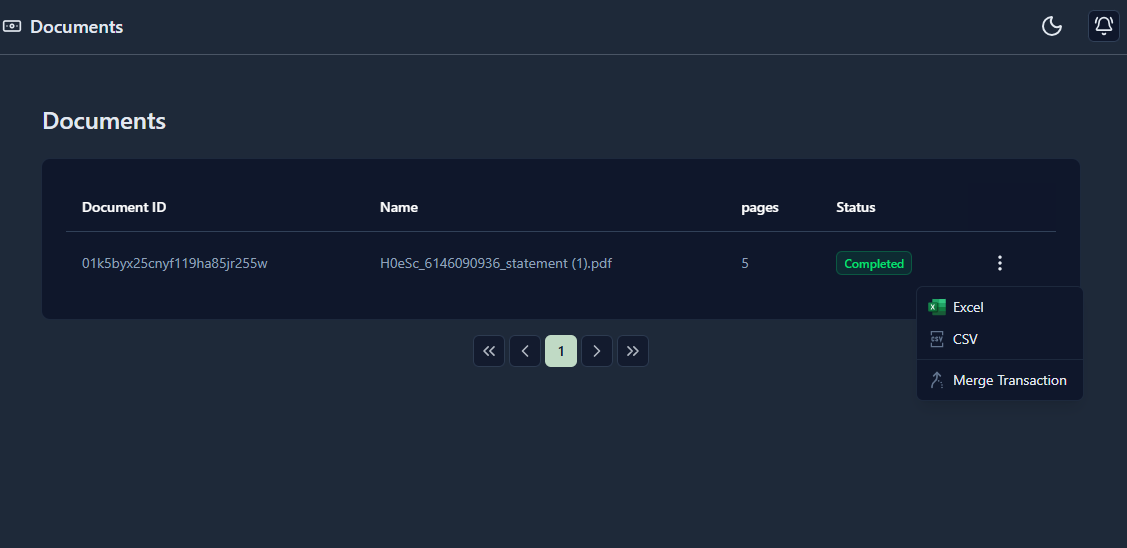
On this page, you can view and manage your uploaded **documents**.\
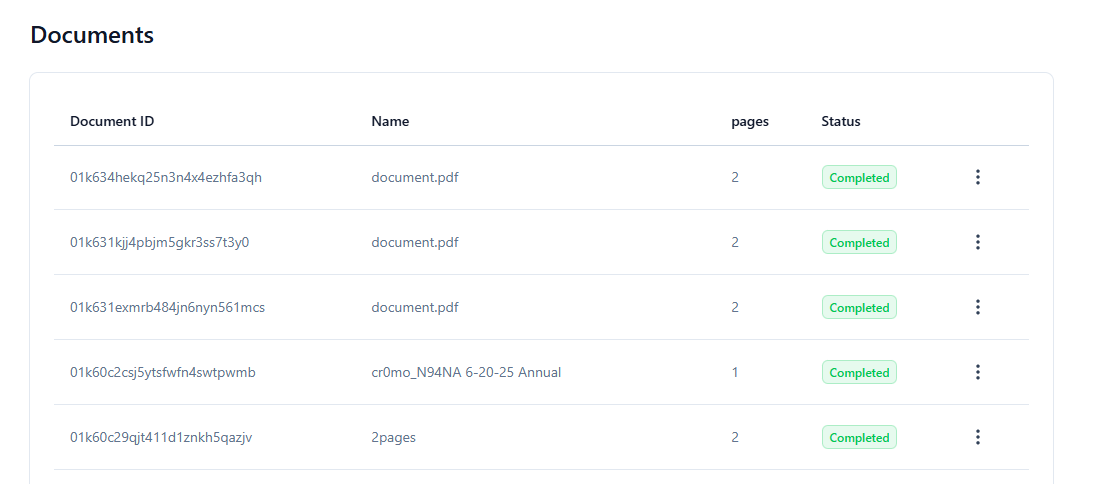
Each document shows its details such as ID, name, number of pages, and status.\
You can also download documents in different formats for your records.
***
## Documents List
| Document ID | Doc Name | DocPages | Status |
| ---------------- | ------------ | -------- | --------- |
| Your Document ID | Document.pdf | 1 | Completed |
***
## Available Actions
For each document, you can:
* **📊 Export as Excel**
* Download document data in **Excel format (.xlsx)**.
* **📑 Export as CSV**
* Download document data in **CSV format (.csv)**.
* **🔗 Merged Transactions**
* Download a combined file of all transactions merged together.
The merged document is available to subscribers only.
* **📧 Email support**
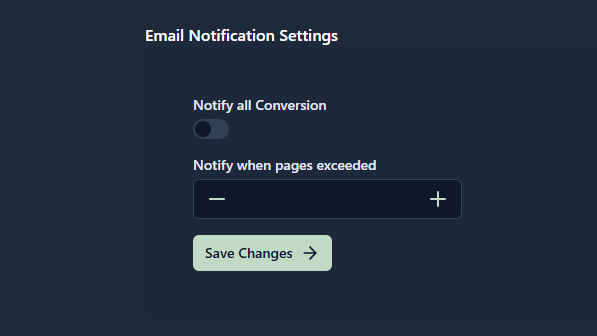
* Once the file is **completed**, you will receive an email notifying you that your file is ready.
***
✅ **Tip:** Use Excel or CSV if you want to analyze the data. Use Merged Transactions if you want all records combined into one document.
> Follow the screenshots for a step-by-step guide.
1. The documents shows the document ID, file name, and status. You can use the action button to download the file in your desired format, like **Excel, CSV, or Merged Transactions**.
2. The statement shows the Manage and download your documents in your desired formats
3. You will receive all file-related notifications. You can turn off notifications for all conversions if you prefer
> Follow the Tutorial video for a step-by-step guide.
 2. The statement shows the Manage and download your documents in your desired formats
 3. You will receive all file-related notifications. You can turn off notifications for all conversions if you prefer
 > Follow the Tutorial video for a step-by-step guide.