
Convert statements#
The first item in the sidebar. Statements go in here as PDFs or images; an Excel workbook comes out in your output folder. Everything happens on this computer — the pages are never uploaded.
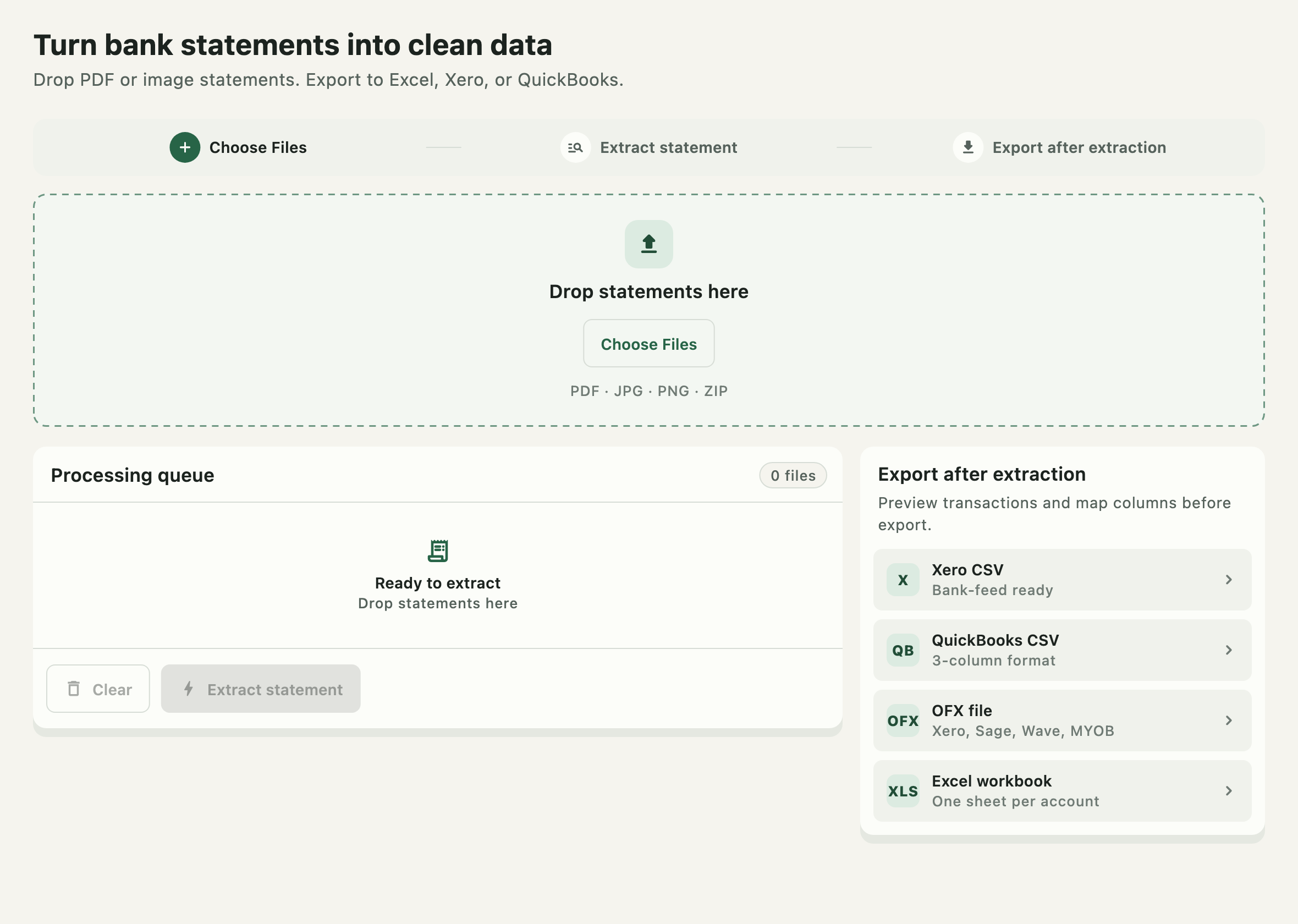
The screen is three bands. The rail across the top names the three steps. The drop area takes files. Below it, the queue on the left holds what you added and the card on the right lists what you can export once conversion finishes.
Adding statements#

Four ways in, all equivalent:
- Drag files from Finder or File Explorer onto the drop area.
- Click anywhere in the drop area.
- Click Choose Files.
- Press
Cmd+O(macOS) orCtrl+O(Windows).
Accepted formats are PDF, JPG/JPEG, and PNG. ZIP is accepted too, but as a container rather than a statement — see below.
The drop area is disabled, and shows a "no entry" cursor, while the extraction engine is still starting or a conversion is already running. Wait for the engine chip in the top bar to read Engine ready.
Use the bank's own PDF where you can. A downloaded PDF carries a text layer the extractor can read directly; a photo has to be recognised character by character, which is where mistakes come from. If a photo or scan is all you have, get the whole page in frame, keep it upright and flat, and avoid shadows, folds, and highlighter.
Dropping a ZIP#
An archive is expanded before anything else happens, and each statement inside is queued as if you had dropped it yourself — its own progress, its own workbook, its own review flags. Nothing downstream knows an archive was involved.
Only PDFs and images are taken out; anything else in the archive is reported as skipped.
Two files with the same name in different folders both survive — the second gets a (2)
suffix rather than being dropped as a duplicate.
An archive that cannot be opened (damaged, or password protected) is reported against the archive's name, not against any statement inside it.
The processing queue#
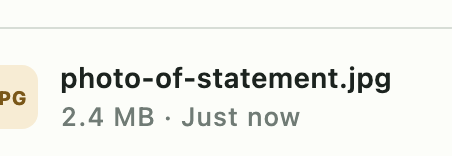
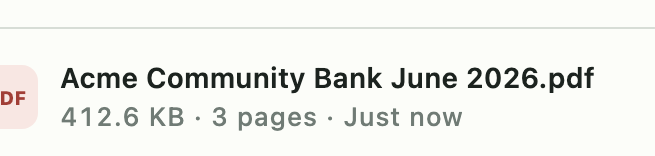
Each queued file shows its name, size, page count for PDFs, and when it was added.
Extract statement starts the conversion. The app can convert several statements at once and automatically chooses a safe number for your computer.
Status pills track each file:
| Pill | Meaning |
|---|---|
| Queued | Added, not started |
| Extracting · nn% | Running, with a progress bar and a line naming the current page |
| ✓ Done | A workbook was written to the output folder |
| Failed | Nothing was written; the reason is printed under the row |
While work is running the button reads Processing, and Clear is unavailable. If any file failed, the button becomes Retry — it restarts the files that did not succeed and leaves the finished ones alone.
Clear empties the queue. It does not delete your source statements or any workbook already written.
When a file fails#
The reason is shown in full under the row. The two icon buttons on a failed row retry that file on its own, or remove it from the queue.
After conversion#
A finished row grows three shortcuts:
| Action | What it does |
|---|---|
| Open Excel | Opens the new workbook in the computer's default spreadsheet app |
| Edit | Opens it in the workbook editor, inside the app |
| Xero / QuickBooks CSV | Opens the accounting export for it |
The workbook is written to the folder configured in Settings — by default
Downloads/Bankstmtconverter on macOS and Documents/Bankstmtconverter on Windows.
If completion notifications are on, one arrives naming the statements that finished.
The export card#

This card is a signpost, not a control. It names what a converted statement can become, and every row opens the Statements page, where the export actually happens. It does not export the queue.
Engine status#
The chip in the top bar reports the extraction engine. It moves through waiting, loading, verifying, finishing, and finally Engine ready — green — after which conversion is possible. If it reads Engine failed, the chip becomes a button: press it to retry the startup. If it never becomes ready, restart the app.
A license is required#
Conversion checks the license before it starts. Without an active trial or a valid license the app moves you to the License page instead of converting. The check runs at launch and again before each conversion.