
Workbook editor#
The editor opens an extracted .xlsx inside the app so the numbers can be checked against the
statement before anything is exported. Open it with Edit on a statement row, from the row
menu, or straight from a finished conversion.
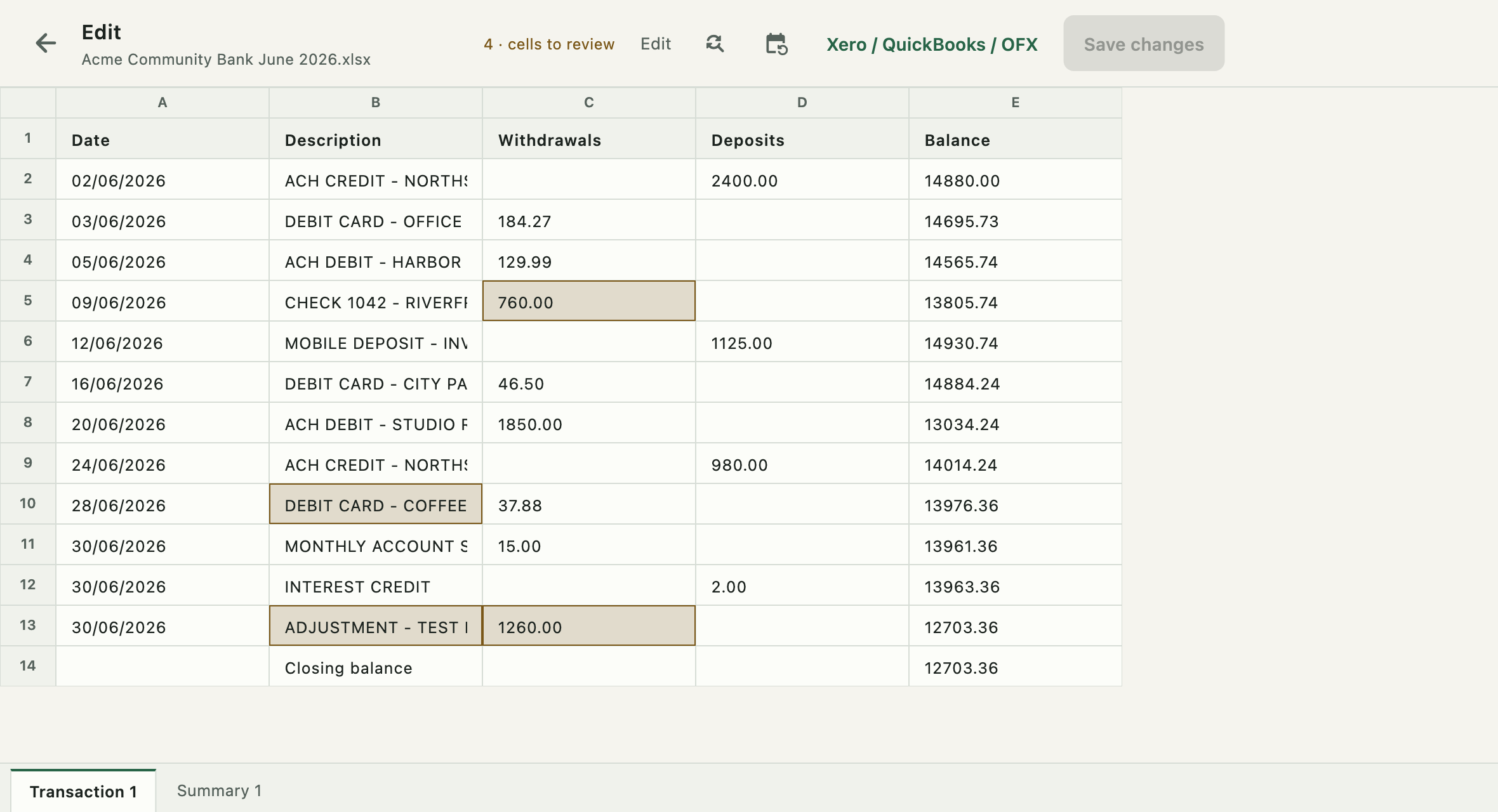
It behaves like a spreadsheet: column letters across the top, row numbers down the side, one editable cell at each intersection, and sheet tabs along the bottom. Click a cell and type.
The toolbar#

| Control | What it does |
|---|---|
| Back arrow | Returns to Statements, asking first if there are unsaved edits |
| Review count | How many cells are still flagged as uncertain |
| Edit | Row and column commands, and undo — see below |
| Find-and-replace icon | Plain-text replace across every sheet |
| Add-year icon | Completes dates that carry no year |
| Xero / QuickBooks / OFX | Opens the accounting export — enabled only when everything is saved |
| Save changes | Writes your edits back to the .xlsx; unavailable until something changes |
The export button is deliberately disabled while edits are pending, so an export can never be built from a version of the workbook you are no longer looking at.
Cells flagged for review#
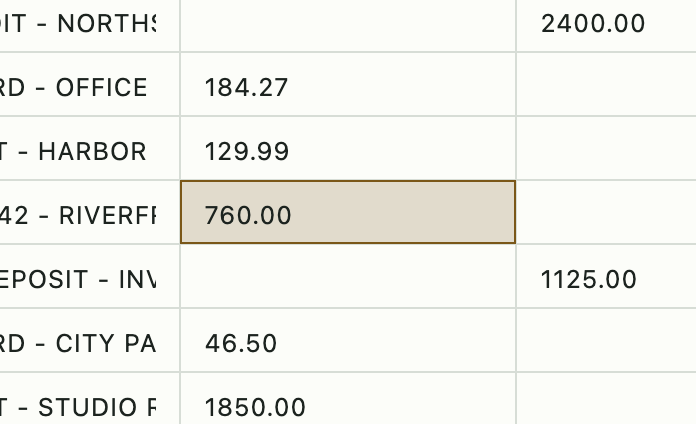
Amber cells are ones the extraction was not confident about. Editing a flagged cell clears its flag — the app treats "you typed here" as "you looked at it". The count in the toolbar drops accordingly.
Flags travel with their cells: inserting or deleting a row or column moves them, so a flag never ends up pointing at the wrong value.
Flagged cells are where to start, not where to stop. Unflagged cells can still be wrong.
Sheets#
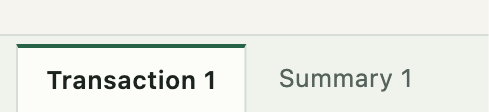
An extracted statement usually has one or more Transaction sheets and a Summary sheet. Tabs
sit under the grid, where a spreadsheet keeps them. Underscores are shown as spaces, so
Transaction_1 reads as Transaction 1; the sheet's real name is unchanged.
The tab strip scrolls with a mouse wheel when there are more sheets than fit.
Columns and rows#
Click a column letter or a row number to select it. That selection is the target of every command in the Edit menu, and each destructive command names it, so nothing is ambiguous about what is about to disappear.
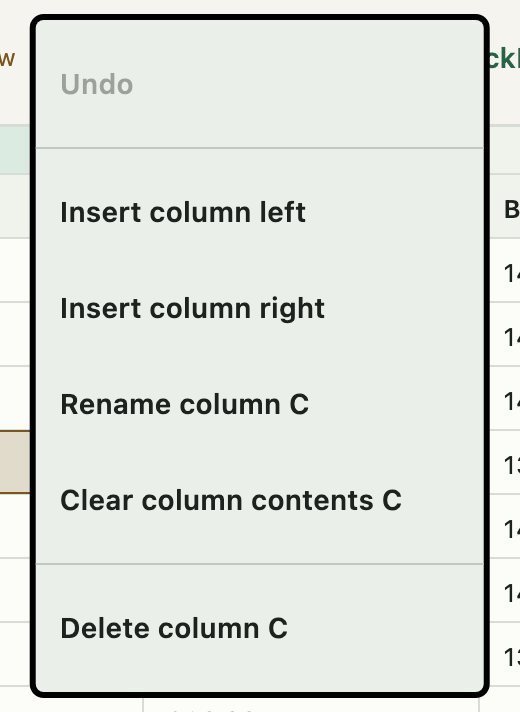
| Column command | Effect |
|---|---|
| Insert column left / right | Adds an empty column beside the selected one |
| Rename column | Edits the header cell in row 1 |
| Clear column contents | Empties the column but keeps it and its header, so no other column moves |
| Delete column | Removes the column entirely |
Right-clicking a column letter or a row number opens the same commands at the pointer.
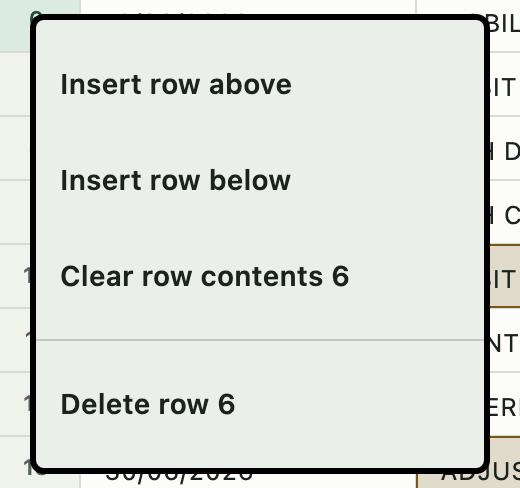
| Row command | Effect |
|---|---|
| Insert row above / below | Adds an empty row |
| Clear row | Empties the row's cells but keeps the row |
| Delete row | Removes the row |
Resizing#
Drag the divider on the right edge of a column letter to resize it. Double-click that divider to fit the column to its widest value, the way a spreadsheet does. Widths are remembered per sheet, so widening a column on one sheet leaves the others alone.
Undo#
Undo is the first item in the Edit menu, and it names what it will reverse — Undo · Delete
column C. Cmd+Z / Ctrl+Z does the same when no cell has focus.
It covers structural and bulk changes: inserts, deletes, clears, renames, find and replace, and
add-year. It deliberately does not record individual keystrokes — a text field already undoes
its own typing, and folding keystrokes in would bury the destructive operations undo exists
for. Type in a cell, and Cmd+Z undoes the typing; click away first, and it undoes the last
operation. The last thirty operations are kept.
Undo also restores whether the workbook was unsaved: undoing the only change since a save leaves it genuinely unmodified again.
Find and replace#
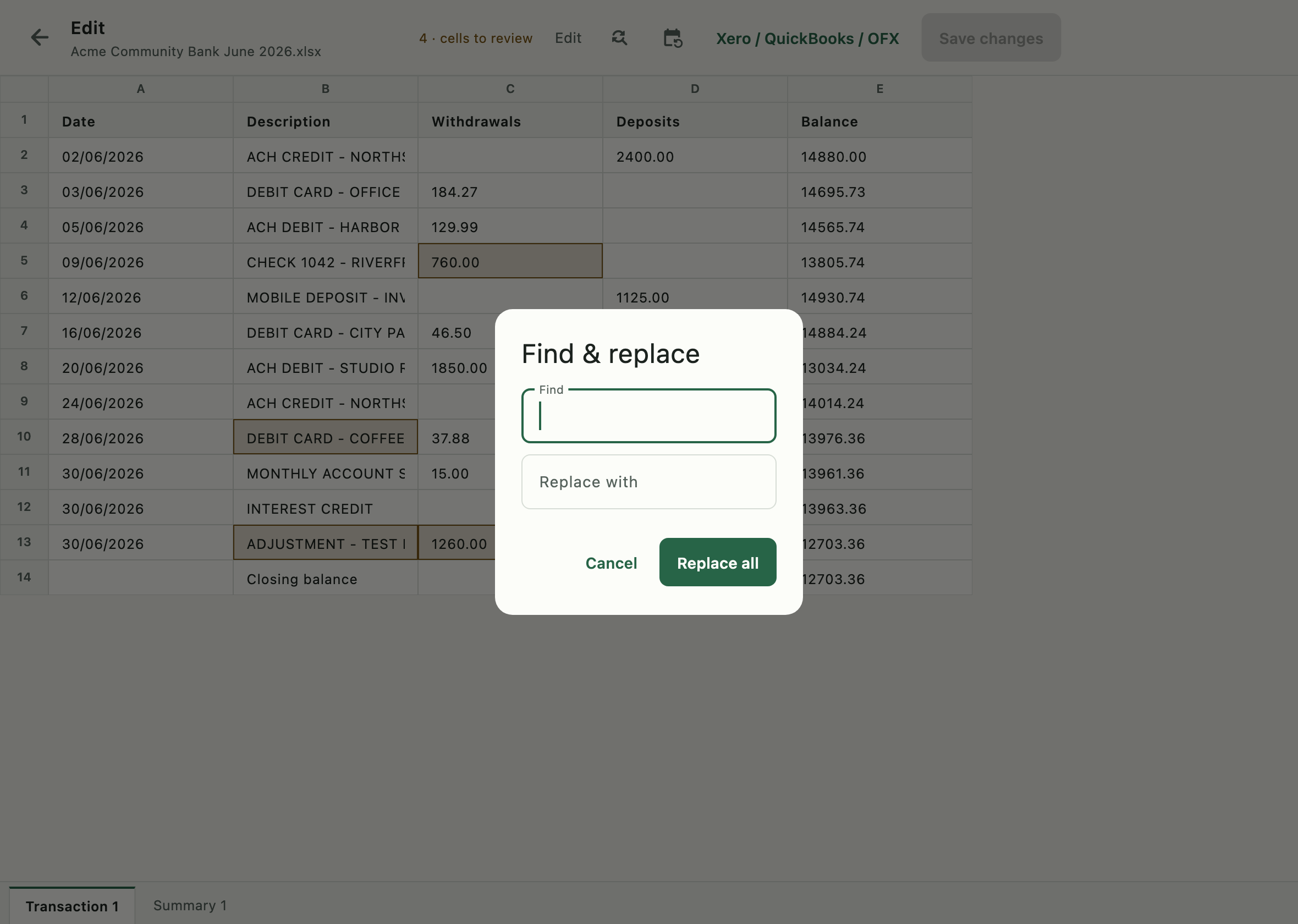
Plain text, case-sensitive, across every sheet in the workbook — not just the visible one. A count of changed cells appears when it finishes. Replaced cells count as reviewed, exactly as if you had typed in them.
It is one undo step, so a replacement that went too far is one command away from being gone.
Useful for a run of mangled merchant names, or for stripping a prefix the extractor picked up on every row.
Add year to dates#
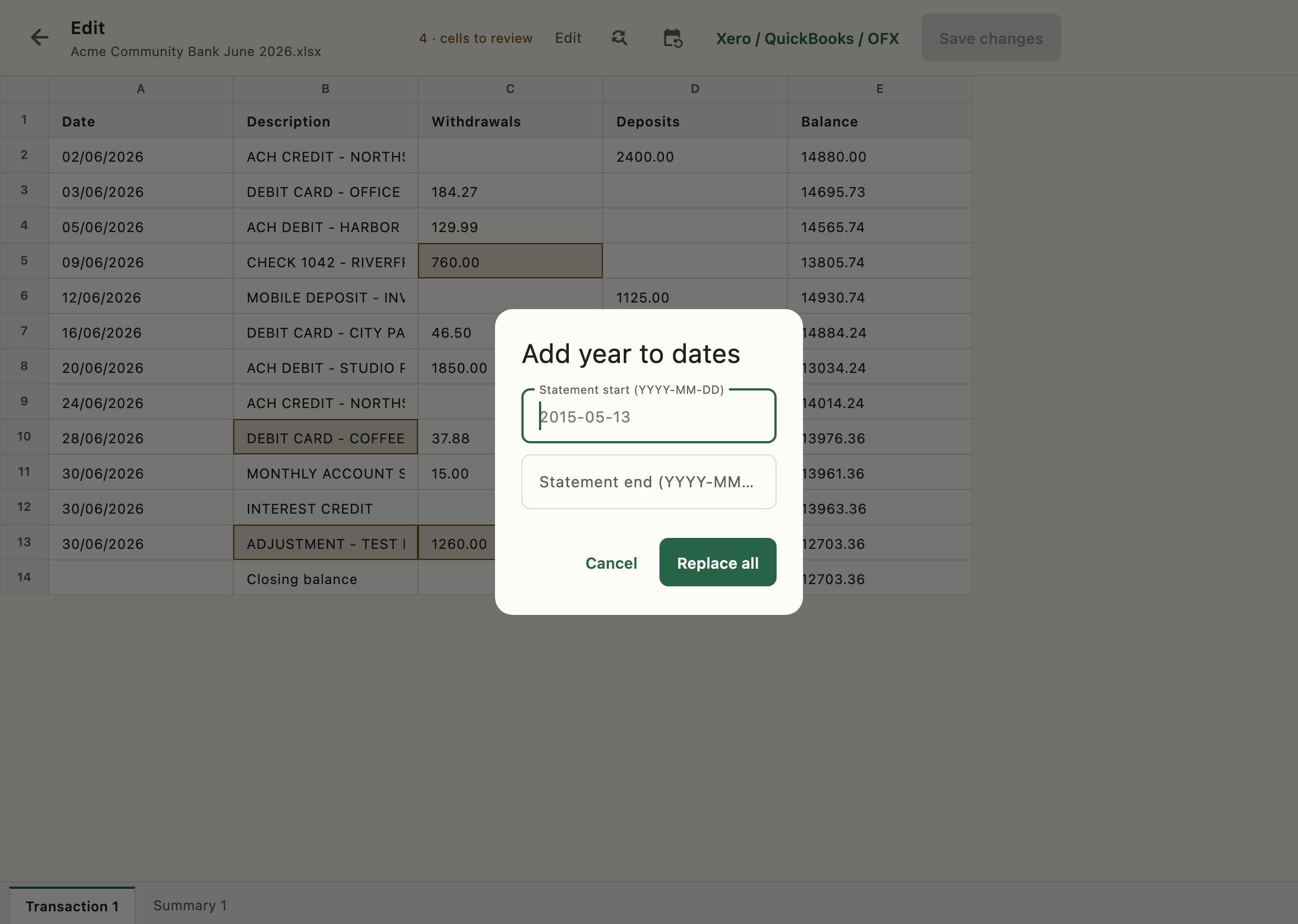
Some banks print 08 Jun or 03/14 with no year at all. Enter the statement's start and end
dates in YYYY-MM-DD form and the app completes every year-less date in the workbook.
Supplying the whole period rather than one year is what makes a statement that crosses New Year
come out right: 28 Dec and 04 Jan on a 2025-12-15 → 2026-01-14 statement land in different
years, correctly.
This is the same inference the accounting export uses. Doing it here writes the years into the workbook itself, so every later export starts from complete dates.
Saving and leaving#
Save changes writes back to the same .xlsx. A Saved note appears next to it afterwards.

Leaving with unsaved edits asks first.
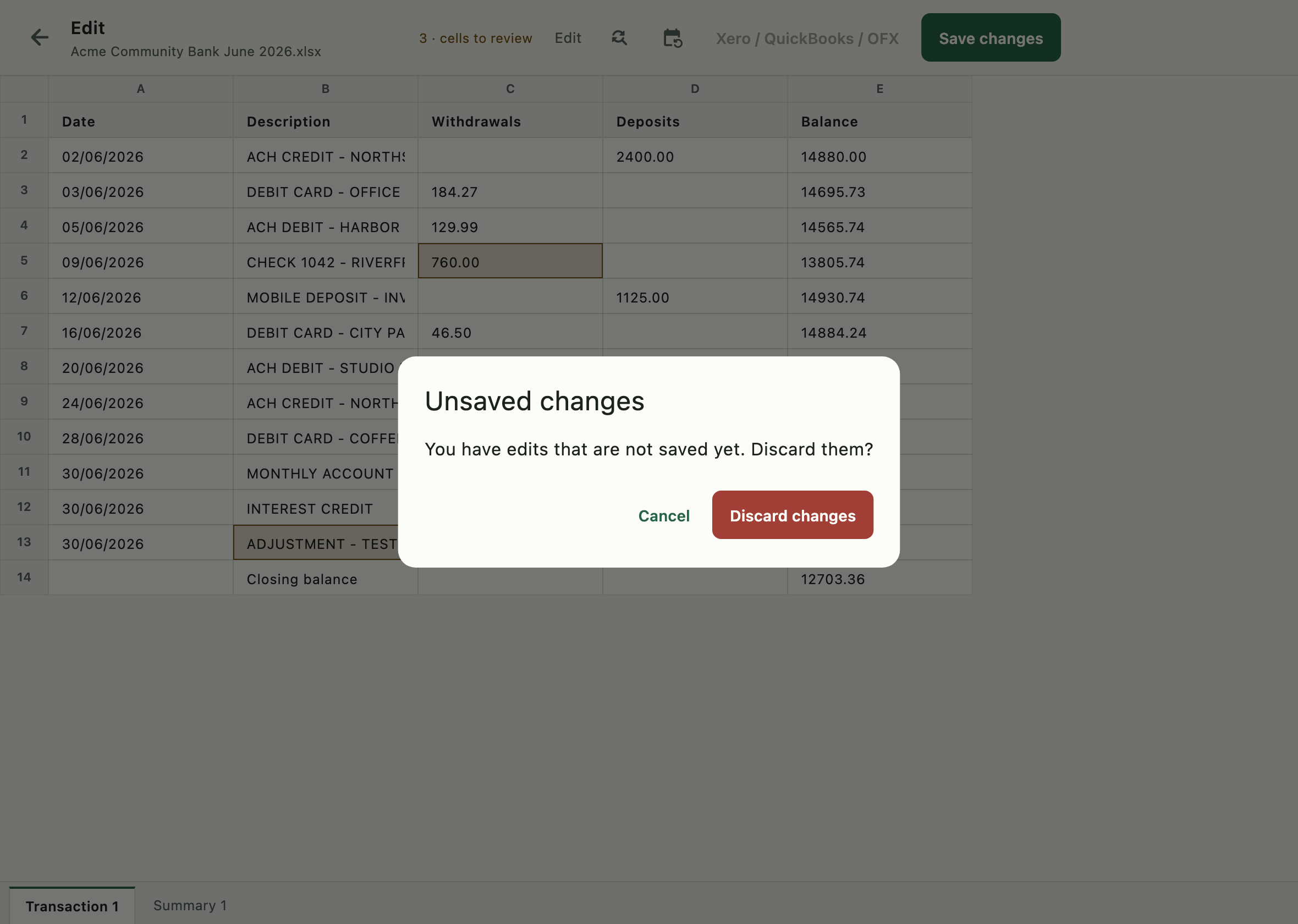
Discard changes throws the edits away; Cancel returns to the editor. Save before you leave if you want to keep them.