
Merge and batch export#
Two ways to work on more than one statement at once, both driven from the Statements toolbar.
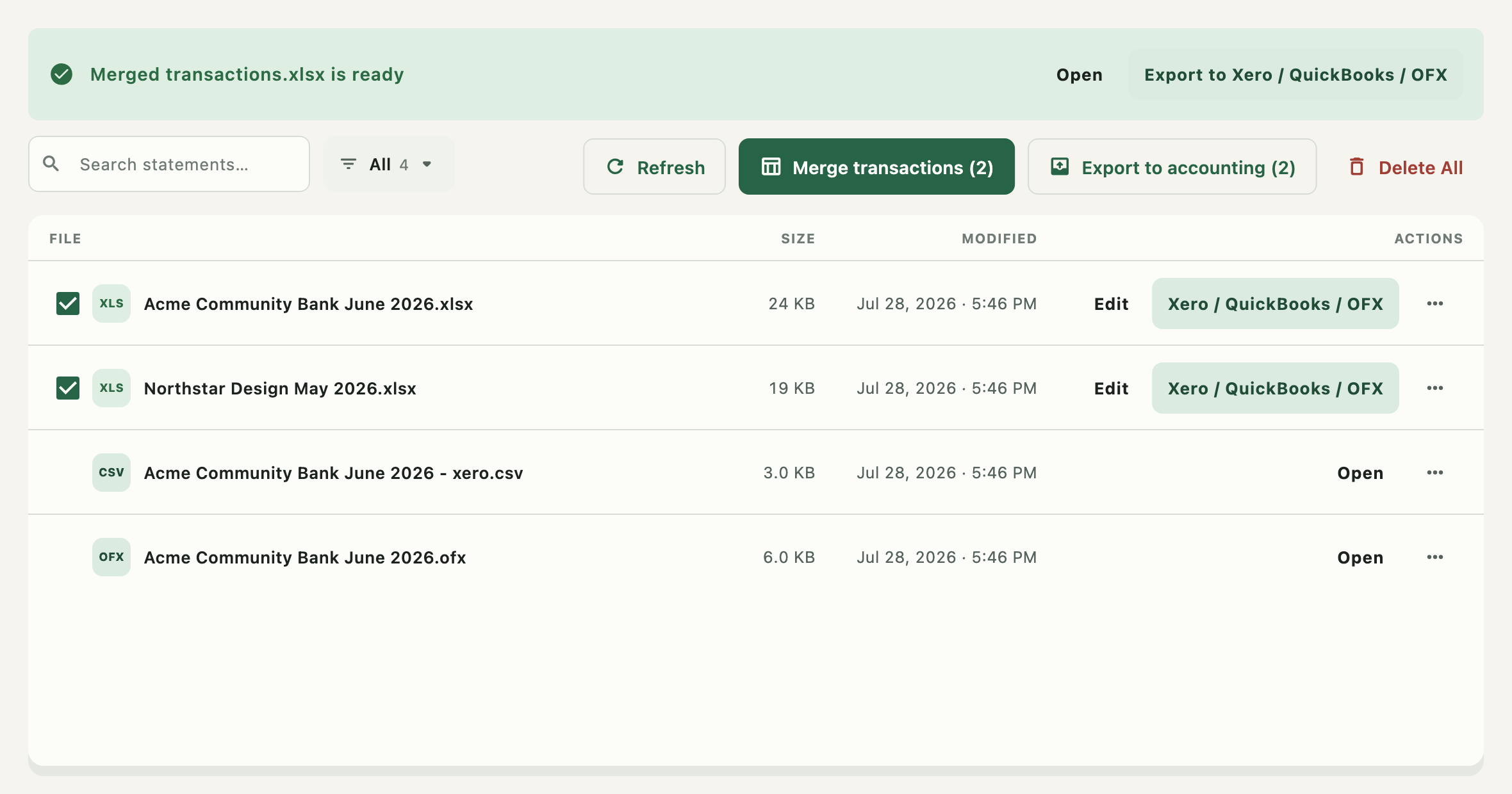
Tick the workbooks you want. With nothing ticked both actions cover every eligible workbook — which is why the buttons then read Merge all transactions and Export to accounting rather than showing a count you never made.
Only extracted workbooks are eligible. CSV and OFX exports have no transaction sheets left to combine, and a workbook that is itself the result of a merge is not merged again.

Merge transactions#
Merge transactions collects the Transaction sheets out of the selected workbooks and
writes them into one new Excel workbook. Use it when a quarter arrives as three monthly
statements and you want one file to review, or one file to export.
A status line reports progress while it runs. When it finishes, a banner appears at the top of the Statements page:

Open opens the merged workbook in your spreadsheet app; Export to Xero / QuickBooks takes it straight to the accounting export. The merged file also appears in the list like any other workbook, so it can be edited and exported later.
Merging within one file#
The row menu's Merge in file does the same thing to a single workbook: a statement whose
transactions were split across several Transaction sheets becomes one sheet. Useful when a
multi-page statement extracted into a sheet per page.
Review before you merge#
Merging combines what is there; it does not re-read the source statements. Correct each workbook in the editor first if you intend to correct it at all — after a merge you would have to fix the same mistake in the merged copy as well.
Export to accounting#
Export to accounting runs one accounting export across several workbooks in a single pass. It asks which provider — Xero CSV or QuickBooks CSV — and then works through each selected workbook in turn.
Each workbook is exported with its own remembered settings: the date format, sign convention, column mapping, and statement period saved the last time you exported it by hand. Where a workbook has no saved settings, detection and your global date-format preference are used.
OFX is not offered here. An OFX file describes one account, with identifiers that have to be entered per account, so there is nothing sensible to apply in bulk. Export OFX one statement at a time.
When the run finishes a summary lists every workbook with a tick and its transaction count, or a cross and the reason it failed. One statement failing does not stop the others. The list is then refreshed so the new files appear.
Getting good results from a batch#
Batch export is a repeat of decisions you already made, not a substitute for making them:
- Export one statement from each bank by hand first, checking the mapping and the statement-totals card.
- Confirm each of those exports looks right.
- Then batch the rest — they will reuse those settings.
Statements you have never exported individually go through detection alone, and nobody looks at the preview. Check the resulting files before importing them.