
Settings#
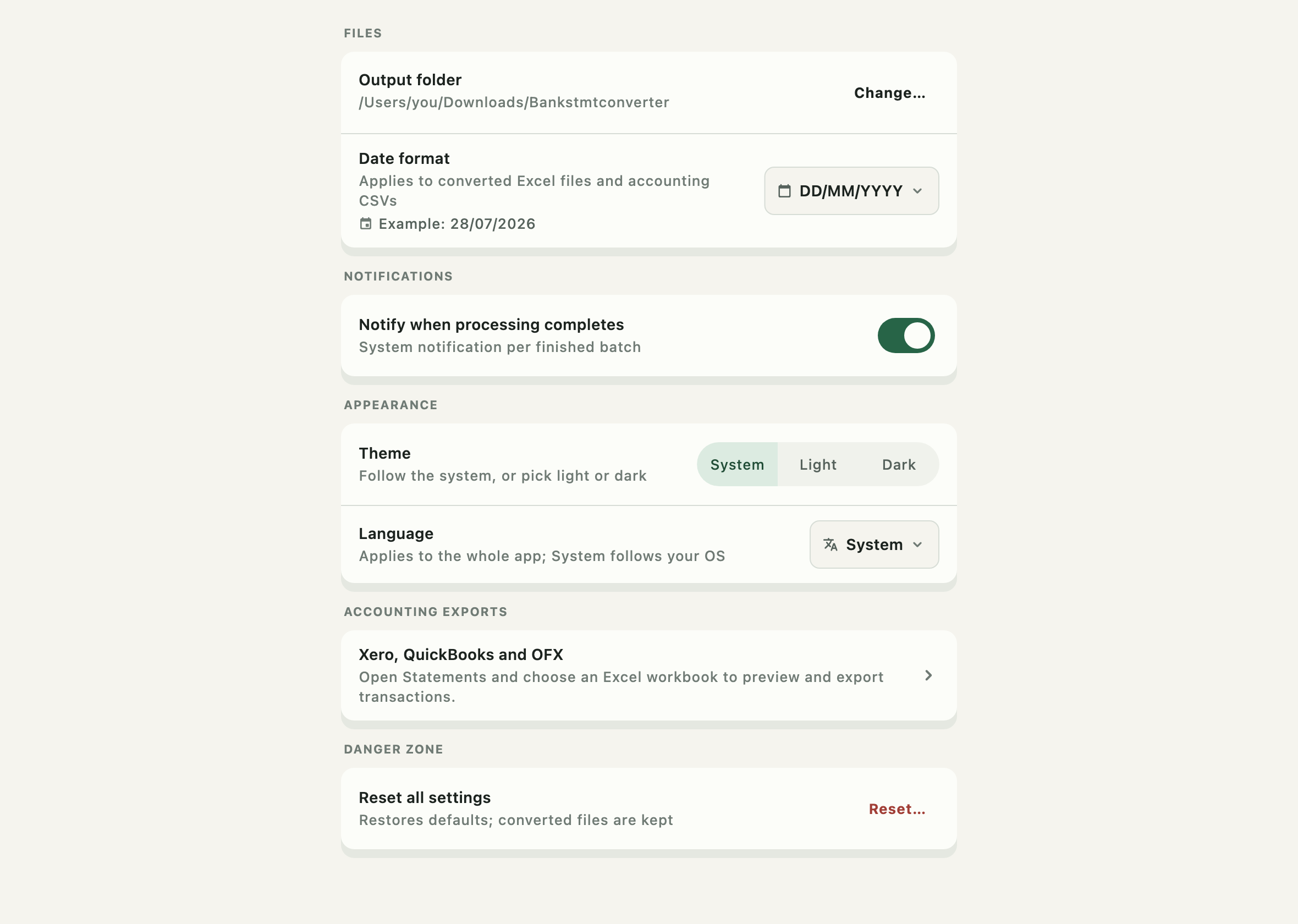
Files#
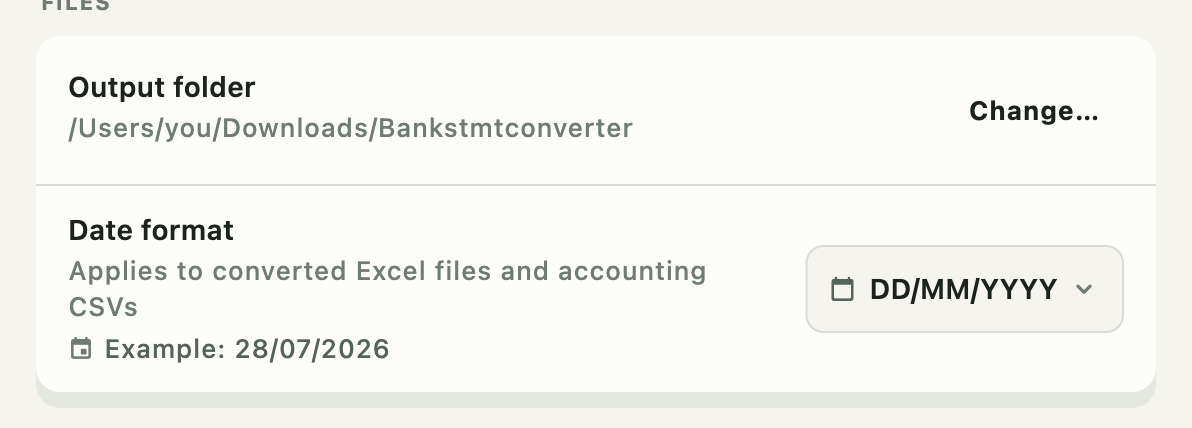
Output folder#
Where converted workbooks, CSVs, and OFX files are written. It defaults to
Downloads/Bankstmtconverter on macOS and Documents/Bankstmtconverter on Windows.
Change opens a folder picker. Whatever you choose, the app keeps a Bankstmtconverter
subfolder beneath it, so output never spills loose into a folder you use for other things.
A line under the path reports whether the folder currently exists — worth a glance if an external drive or a synced folder is involved.
Changing the folder does not move files already written. Use Show in folder on a Statements row to find those.
Date format#

The date format written into converted workbooks and accounting exports. The default is
DD/MM/YYYY.
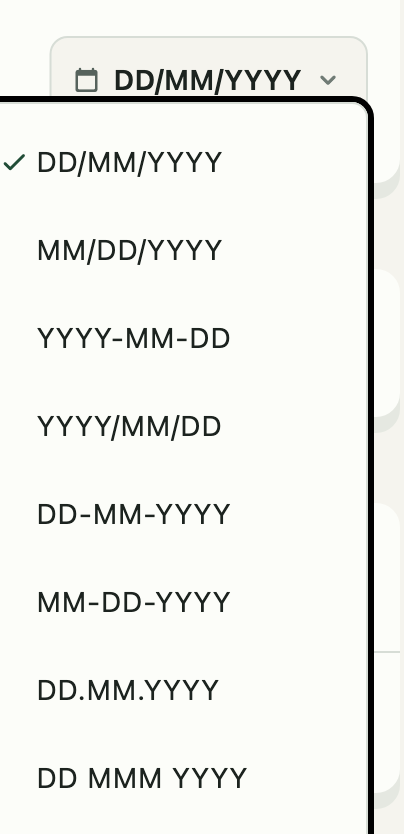
Fifteen formats: day-first, month-first, and ISO orders; slash, dash, dot, and apostrophe separators; two- and four-digit years; and a spelled month. The line under the setting shows today's date in the chosen format, so the choice reads as a date rather than as a spec.
A US accounting workflow usually wants MM/DD/YYYY. Pick what the receiving system expects —
and note that the accounting export lets you override this per export
without changing the setting here.
Notifications#

When on, a system notification names the statements that finished after a conversion.
The switch records what you want, not what the operating system permits. If macOS has denied notification permission, turning the switch on offers a route to System Settings — macOS never re-prompts once denied, so that trip is the only way back. The preference stays on meanwhile, so the toggle does not become impossible to re-enable.
Appearance#
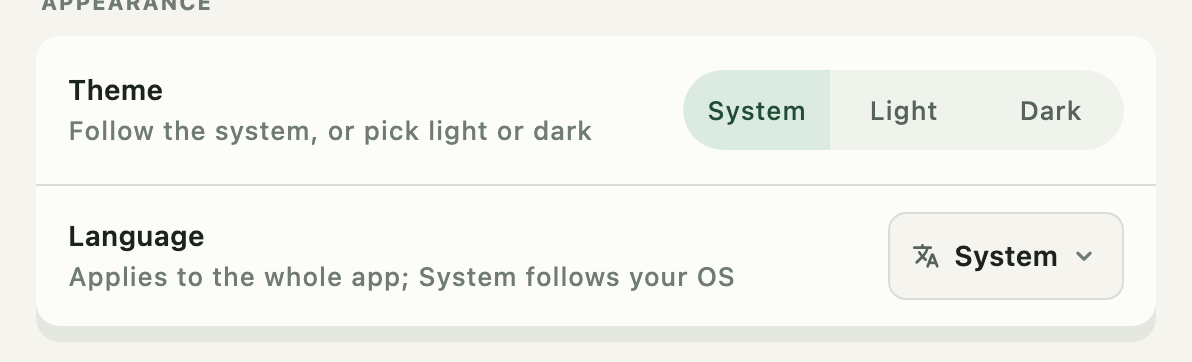
Theme — System, Light, or Dark. System follows the operating system's appearance.
Language — the app's interface language. System default follows the OS.
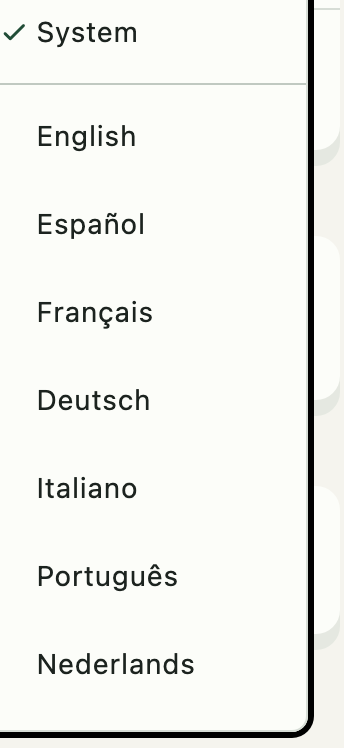
Fifteen languages are available: English, Español, Français, Deutsch, Italiano, Português, Nederlands, 日本語, 한국어, 中文, العربية, हिन्दी, Русский, Polski, Svenska. Each is listed in its own script.
This changes the interface, not the statements. Extraction reads whatever is on the page regardless of which language the app is displayed in.
Accounting exports#
Accounting export options are remembered per statement rather than set globally, so this row is a shortcut to Statements, where each workbook's options live.
Danger zone#

Reset… restores the application's preferences to their defaults, after a confirmation.
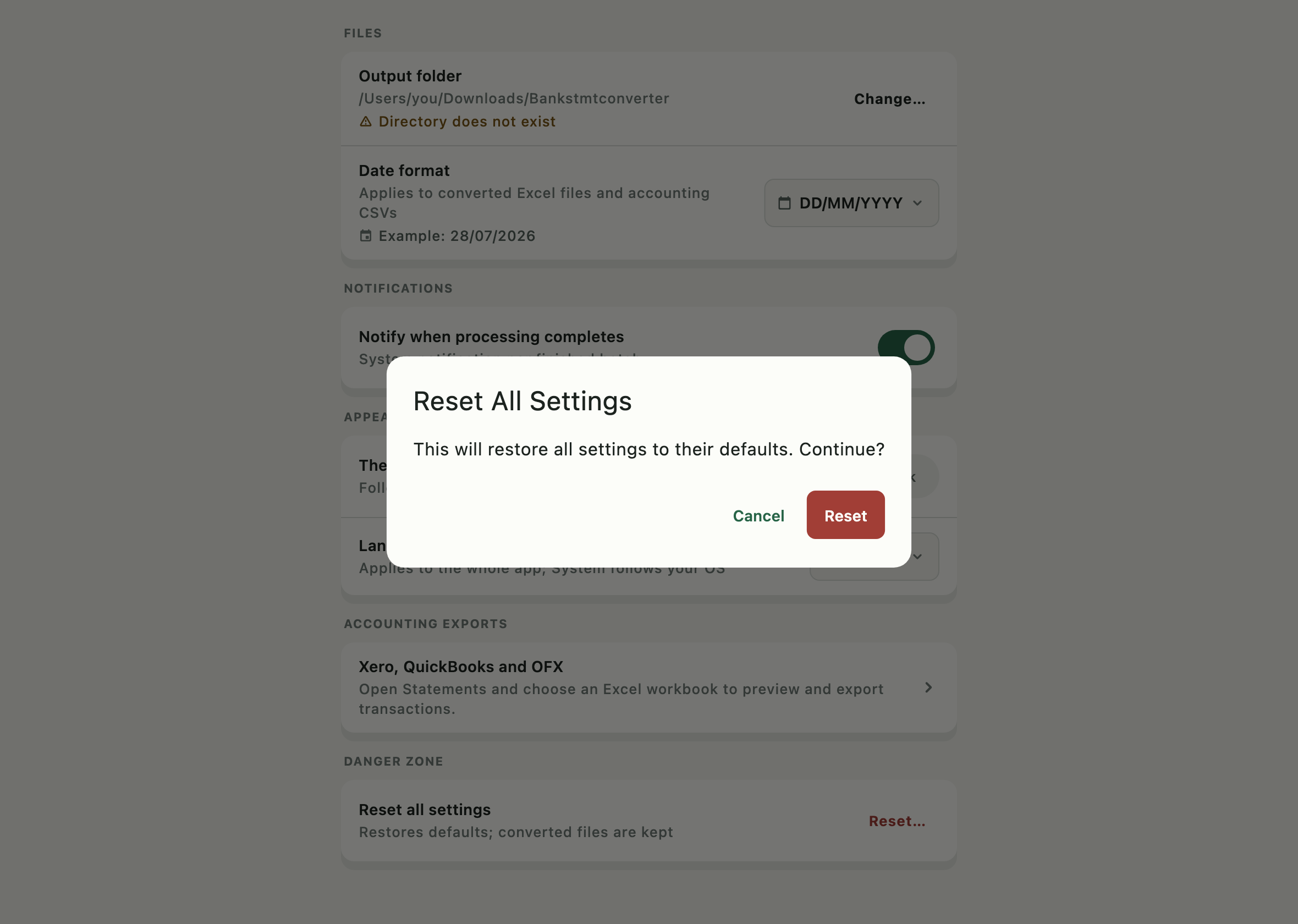
It resets preferences. It does not delete your original bank statements, and it does not delete workbooks or exports already in the output folder.