
BankStmt Desktop user guide#
BankStmt Desktop converts bank-statement PDFs and images into an Excel workbook on your own computer. You can review the workbook in the app, save a plain CSV, or build Xero, QuickBooks, or OFX exports from the reviewed transactions.
Everything needed for conversion is included with the app, and the statements themselves never leave your computer.
This page walks the whole path once. For any single screen in depth, see the feature guide.
Before you start#
You need an active trial or a valid license. On first use, open License in the sidebar and either activate a trial or enter your license key — see License and trial. The app checks at launch and before each conversion.
Prepare statements as PDF, JPG/JPEG, or PNG. ZIP archives are accepted too and are expanded into the statements inside them.
Use the bank's original downloadable PDF where you can. It carries a text layer the extractor reads directly, where a photo has to be recognised character by character. If a photo or scan is all you have, get the whole page in frame, upright, flat, sharp, and free of shadows, folds, and highlighter.
Follow along with the sample#
Everything below uses one fictional statement, so you can reproduce each screenshot exactly:
Acme Community Bank — Business Checking 4821, June 2026 (PNG · transcription)
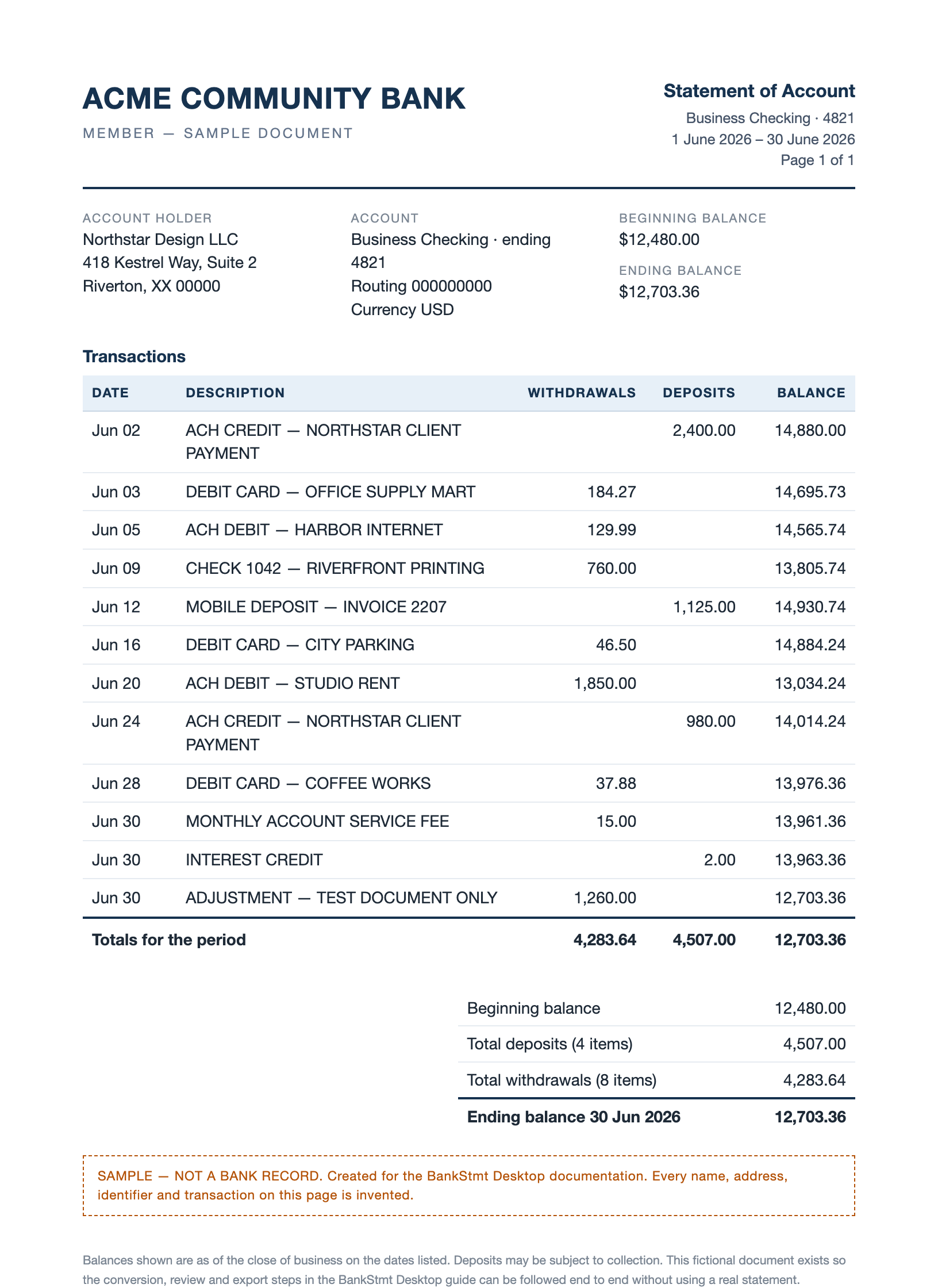
It is invented — there is no Acme Community Bank, and no name, address, account number, or transaction on it belongs to anyone. Twelve transactions, deposits of 4,507.00, withdrawals of 4,283.64, closing balance 12,703.36.
1. Convert#
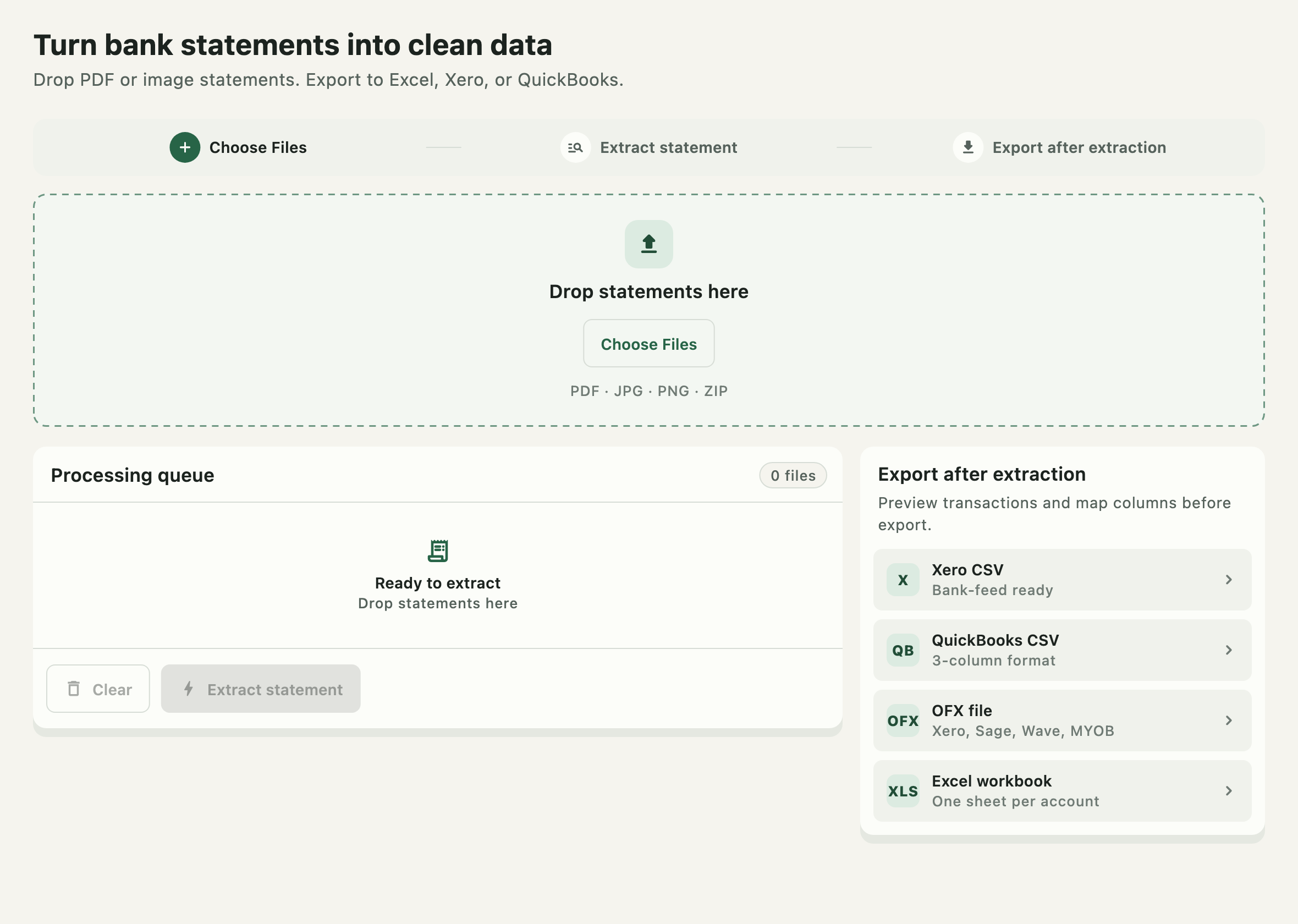
- Open Convert statements.
- Wait for the engine chip in the top bar to read Engine ready.
- Drag the sample onto Drop statements here, or use Choose Files —
Cmd+Oon macOS,Ctrl+Oon Windows. - Check the Processing queue. Clear empties it if the wrong files landed there.
- Press Extract statement. Several statements convert at once, bounded by what the machine can carry.
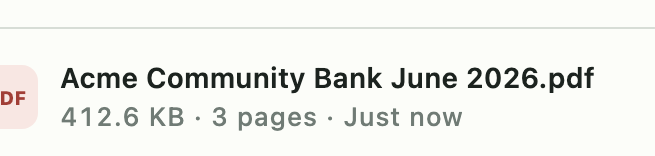
The workbook lands in the folder configured in Settings — by default
Downloads/Bankstmtconverter on macOS, Documents/Bankstmtconverter on Windows.
More: Convert statements.
2. Review#
This is the step that matters. The extraction is a model's reading of a page, not a bank record.
Open Statements and press Edit on the new workbook. The amber number beside its name is how many cells the extraction was unsure about.
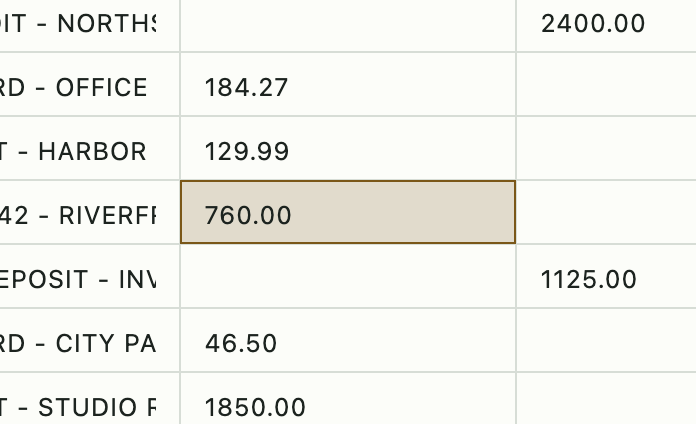
Check the flagged cells against the statement first, then the rest. In the sample, the closing balance must read 12,703.36. Fix anything that does not match, then press Save changes.
The editor also carries find and replace, an add-year tool for statements printed without a year, and row and column commands with undo.
More: Workbook editor.
3. Export#
From Statements, choose what the next system needs:
| Action | Produces | Use when |
|---|---|---|
| Open | — | You would rather work in your own spreadsheet app |
| Edit | — | You need to correct cells first |
| Save as CSV | A CSV copy of the workbook | You want the plain data, columns and all |
| Xero / QuickBooks / OFX | A provider-specific CSV or an .ofx |
You are importing into an accounting system |
| Merge | One combined workbook | Several statements should become one file |
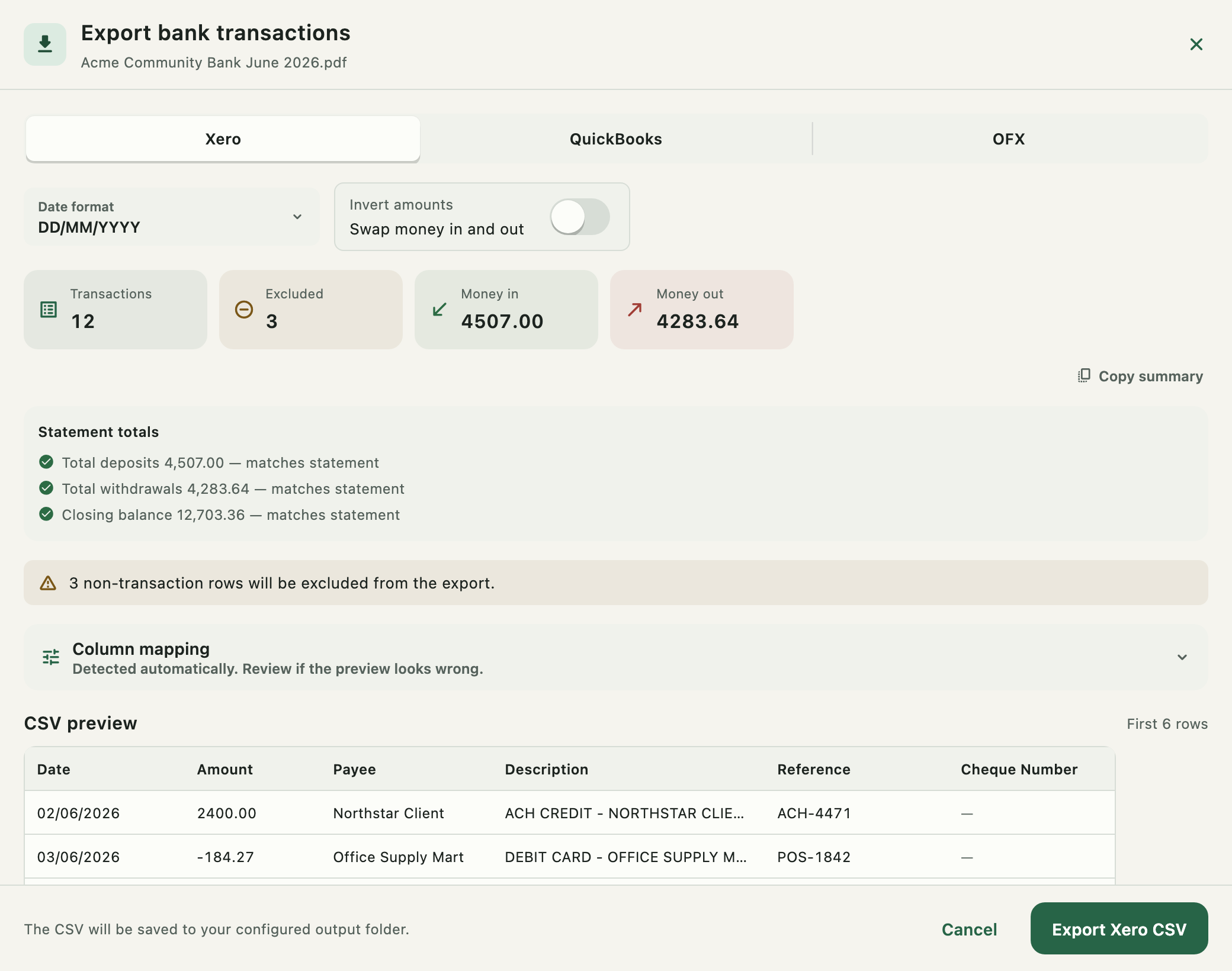
On the export page: pick the provider, confirm the date format and sign convention, read the Statement totals card, and check the CSV preview before pressing the export button.
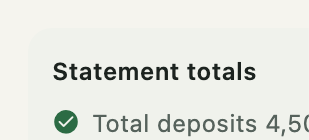
That card is the built-in proof: it compares the totals printed on the statement against the totals of the transactions the app actually found. Three green ticks mean nothing was missed or double-counted. A differs row is a reason to go back to the editor.
OFX additionally needs the account identifiers a statement page cannot supply — account number, bank code, type, currency, closing balance, and balance date. Use your institution's real values; the sample's are invented.
More: Accounting export · Merge and batch export.
Where everything lives#
| Sidebar item | Page |
|---|---|
| Convert statements | Convert statements |
| Statements | Statements library |
| License | License and trial |
| Settings | Settings |
| About | About and updates |
When something does not behave: Troubleshooting.
Before the data is used for anything#
Do not treat an extracted workbook or export as a bank record. Compare amounts, signs, dates, account identifiers, and totals against the original statement before the data reaches bookkeeping, tax, payments, or reconciliation.