
Statements library#
Statements is the output folder shown as a list: every workbook the app has extracted, plus every CSV and OFX file it has exported since. It is where review and export start.
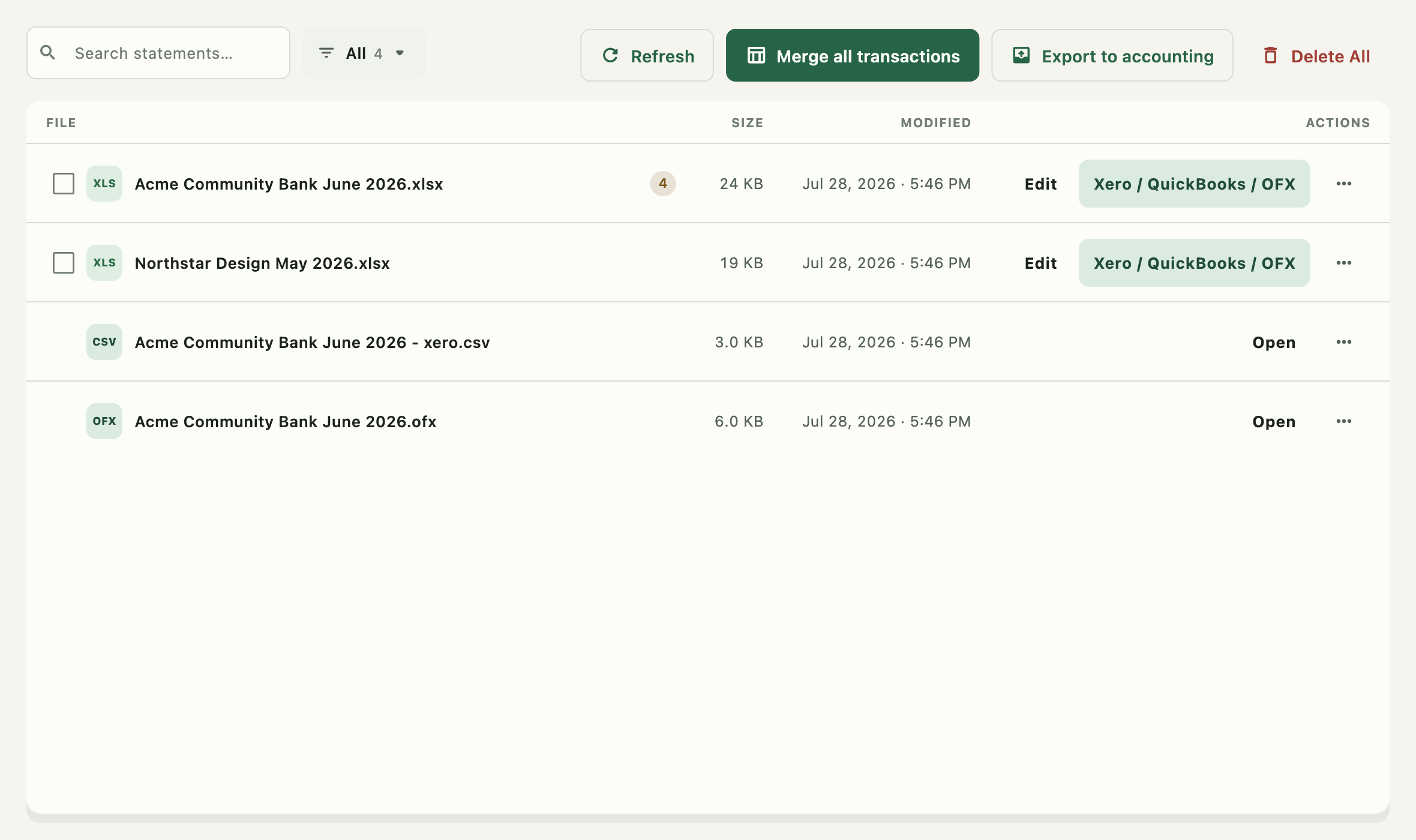
The count beside Statements in the sidebar is how many files the list holds.
The toolbar#

| Control | What it does |
|---|---|
| Search field | Filters by filename as you type |
| Type filter | All / Excel / CSV, each with a live count |
| Refresh | Re-reads the output folder — use it after changing files outside the app |
| Merge all transactions | Combines workbooks into one — see Merge and batch export |
| Export to accounting | Runs one accounting export across several workbooks at once |
| Delete All | Deletes every listed file, after a confirmation |
Filtering by type#
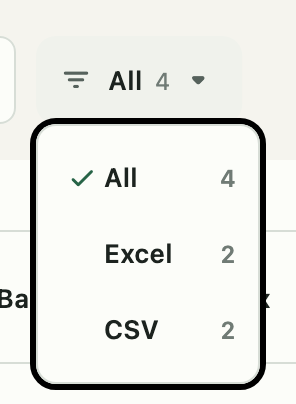
Three choices. Excel narrows to .xlsx/.xls; CSV narrows to .csv and .ofx
together — the two export formats. The number beside each label is how many files match, so
you can see what a filter would do before choosing it.
Search and the type filter combine: a search inside the Excel filter searches only workbooks.
Rows#
Each row is one file: an icon badge for its type, the filename, its size, and when it was last modified. Clicking the filename opens the file in the computer's default application.
The review badge#

An amber number after a workbook's name is how many cells the extraction flagged as uncertain. It is a prompt to open the editor and look, not a count of known errors — and its absence is not a promise that everything else is right.
Row actions#
Excel workbooks lead with Edit and Xero / QuickBooks / OFX. Everything else — a CSV, an OFX file — leads with Open, because there is nothing left to extract from it.
In a narrow window the inline buttons collapse into the row menu, which already carries every action.
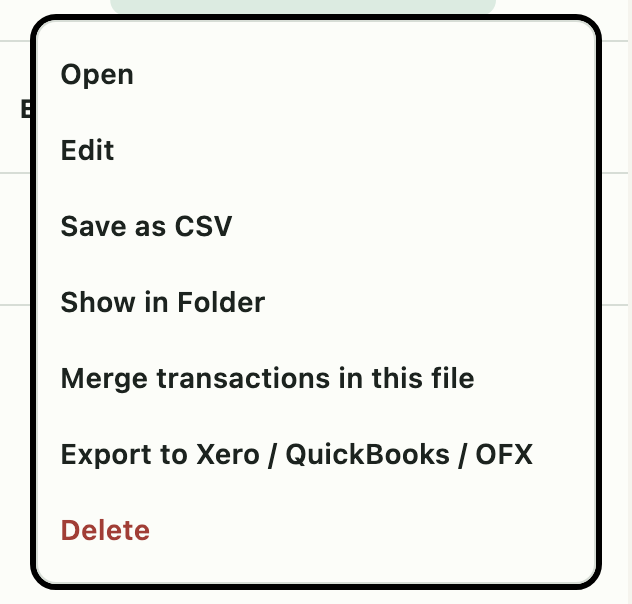
| Menu item | What it does | Appears for |
|---|---|---|
| Open | Opens the file in its default application | Every file |
| Edit | Opens the in-app workbook editor | Every file |
| Save as CSV | Writes a plain CSV copy of the whole workbook | Workbooks |
| Show in folder | Reveals the file in Finder or File Explorer | Every file |
| Merge in file | Merges the transaction sheets within this one workbook | Extracted workbooks |
| Export to Xero / QuickBooks / OFX | Opens the accounting export | Workbooks |
| Delete | Deletes this file, after a confirmation | Every file |
Save as CSV and the accounting exports are different things. Save as CSV dumps the workbook as it stands, columns and all. An accounting export reshapes the transactions into the layout Xero, QuickBooks, or an OFX importer expects.
Selecting statements#
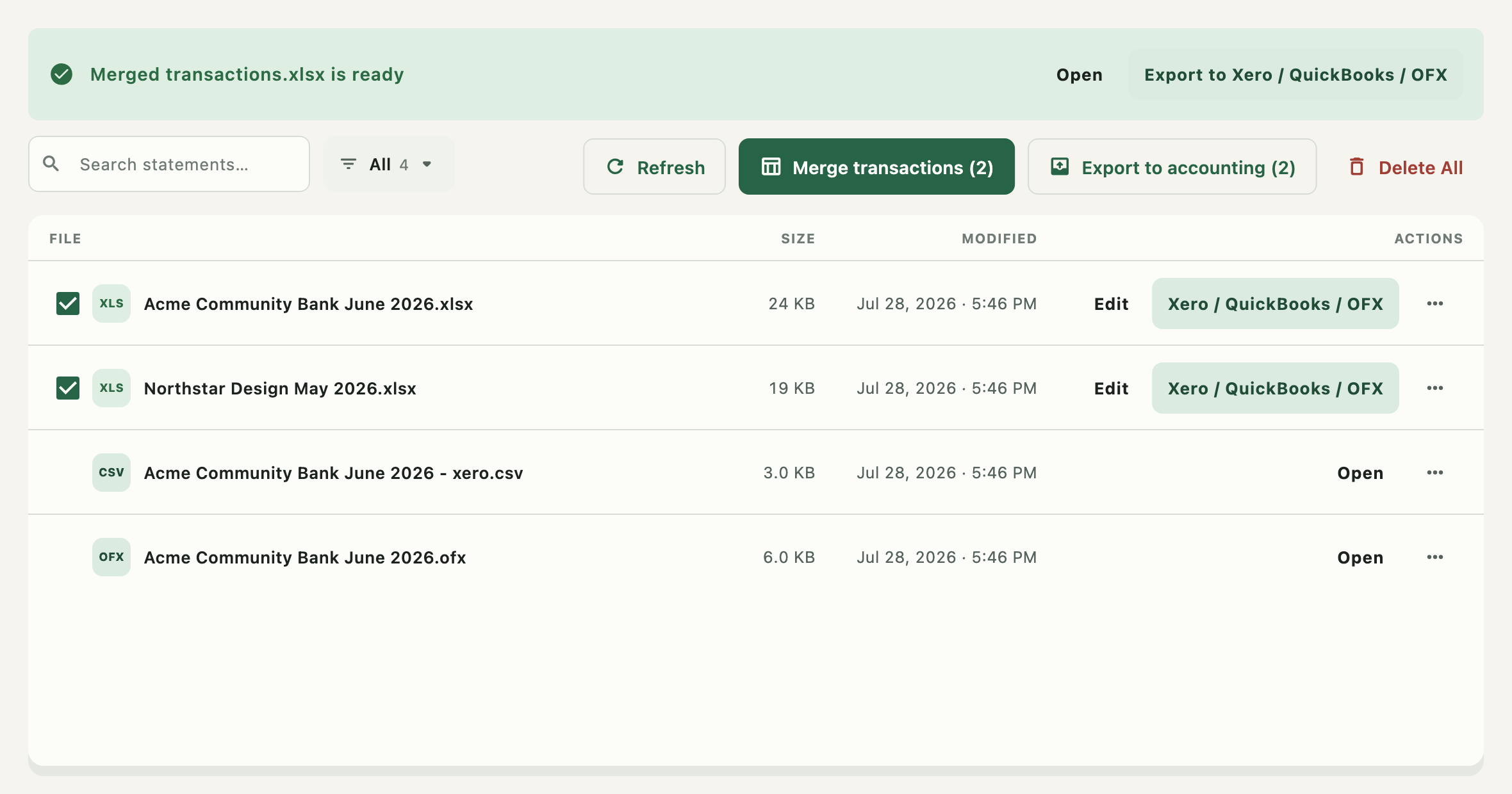
Extracted workbooks carry a checkbox. Ticking some restricts Merge transactions and Export to accounting to those; with nothing ticked, both act on every eligible workbook, which is why the buttons read all rather than showing a count you did not make.
A merged workbook is itself excluded from being merged again.
Empty states#
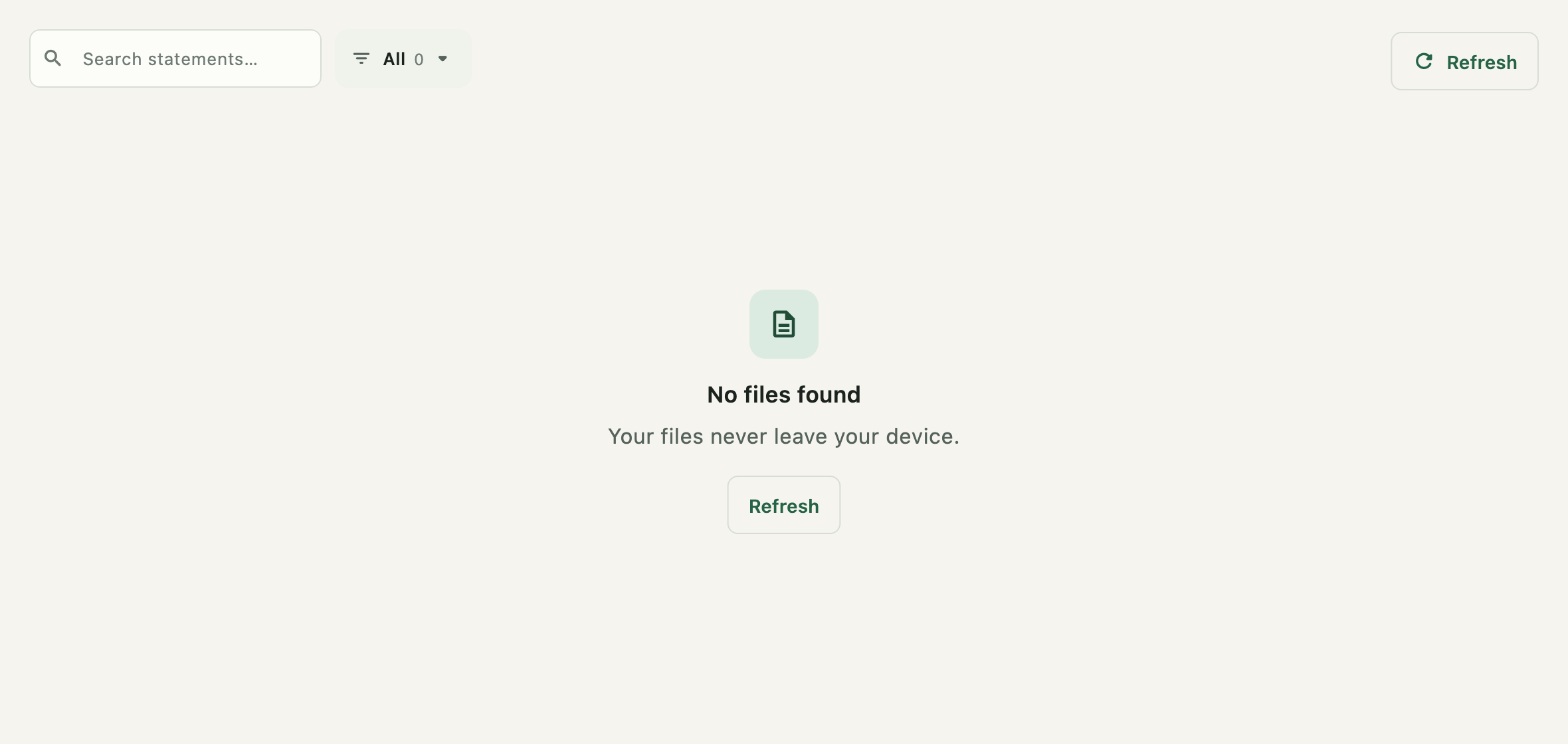
An empty output folder offers Refresh. A search or filter that matches nothing says so and names the search term, so an empty list is never ambiguous between "no files" and "no matches".
Deleting#
Delete removes one generated file; Delete All removes every file in the list. Both confirm first, and both act only on files the app produced — your original bank statements are somewhere else entirely and are never touched.